AIDR Manual
ENNLDAFR

AIDR Studio

AIDR Manual

Set up a project, generate and spot takes, get them reviewed.

September 2026 · AIDR Studio 1.27

For workspace admins, project creators, project assistants and dialogue editors

One example runs through the whole manual: the film Le Retour, the character Camille Roussel, cue 18210.

Plain text version, for AI assistants

How a project runs

From a new project to the final take in Pro Tools. Each step names who does it.

The director goes first, then the actor decides
Create the projectProject creator or workspace adminAdd characters or import the cast listCreator, or assistant if tickedInvite actors and crewCreator, or assistant if tickedActor signs, you approve the claimCreator, or assistant if tickedGenerate and spot takesDialogue editor, in AIDR StudioSend the take for reviewDialogue editor Director present? Director reviewsDirector, in the review appActor decides on their own voiceActor: approve, reject, or record itTake approved, cue lockedThe answer lands on the cue in AIDR StudioSpot the final take in Pro ToolsDialogue editor noyesacceptedapprovedrejectedrejected or recorded Set upInviteMakeReviewFinish

Director present on: the director approves in the room and the cue goes straight to the actor. A rejected take, or a line the actor recorded, goes back to the dialogue editor for a new take. A director can also choose Do it in the studio.

Part A

Set up a project

For: Workspace admin · Project creator · Project assistant · aidr.studio

Your workspace

Your invitation opens here. Your level is already set for you. (1) Your level; (2) Accept invitation.

Your invitation opens here. Your level is already set for you.

  • 1Your level
  • 2Accept invitation
×
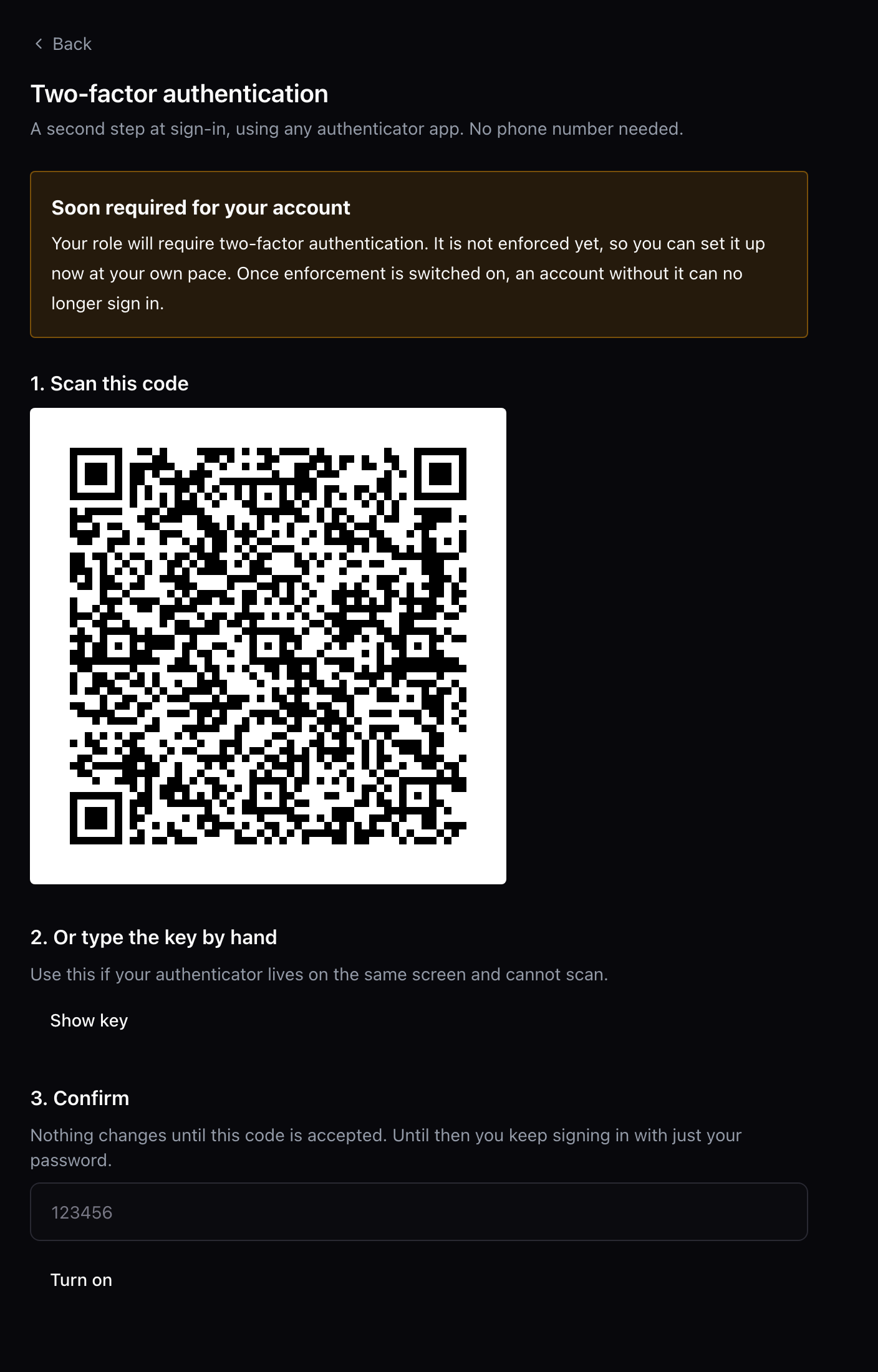
Admins sign in with a second step. Scan the code with an authenticator app. (1) Scan; (2) Six-digit code.

Admins sign in with a second step. Scan the code with an authenticator app.

  • 1Scan
  • 2Six-digit code
×
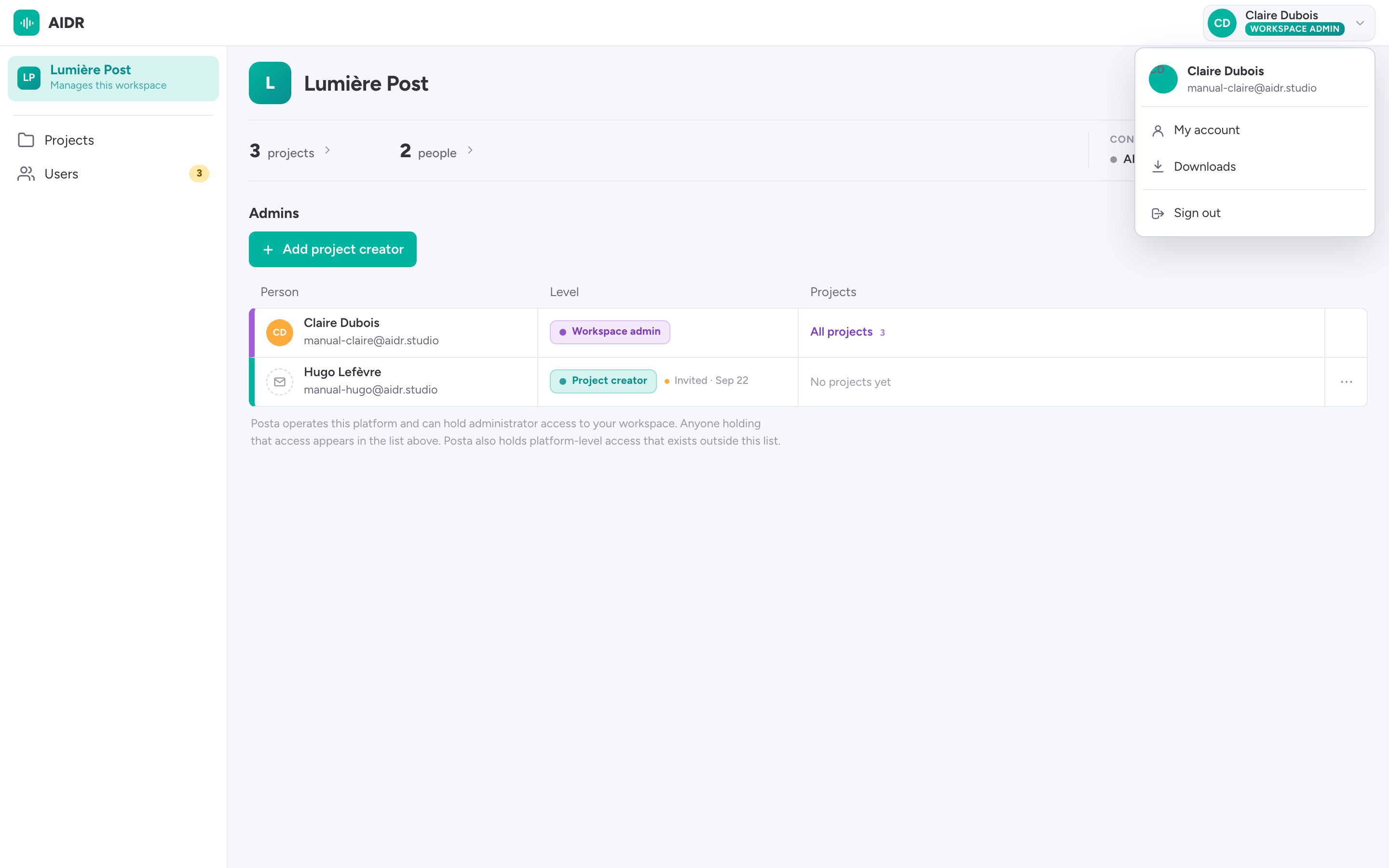
Your workspace. (1) All projects; (2) Everyone, and open invitations; (3) Who manages what; (4) My account, Downloads.

Your workspace.

  • 1All projects
  • 2Everyone, and open invitations
  • 3Who manages what
  • 4My account, Downloads
Who can do what
Workspace adminProject creatorProject assistant
Create projectsyesyes
See projectsallown projectsassigned
Characters, cast listyesown projectsif ticked
Invite actors and crewyesown projectsif ticked
Invite project creatorsyes
×
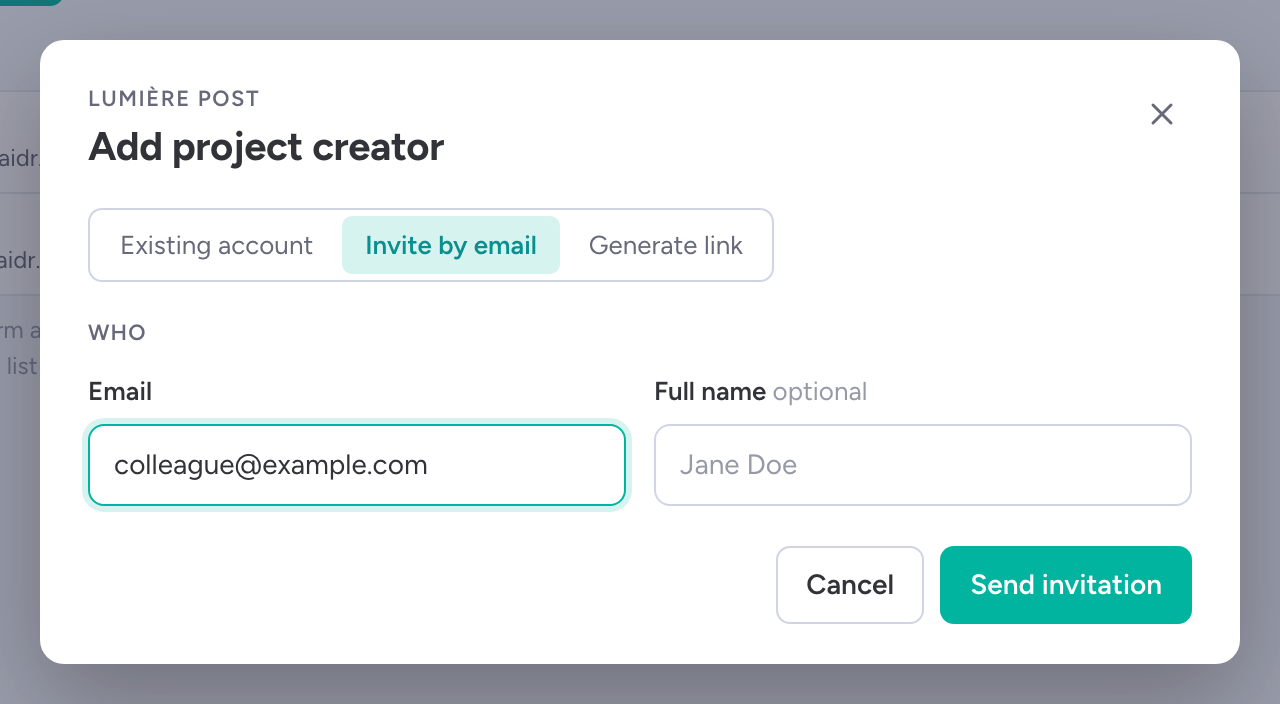
Invite a colleague as project creator. Adding a workspace admin needs AIDR. (1) Level; (2) Email, or a link to share; (3) Send invitation.

Invite a colleague as project creator. Adding a workspace admin needs AIDR.

  • 1Level
  • 2Email, or a link to share
  • 3Send invitation
A new project

×
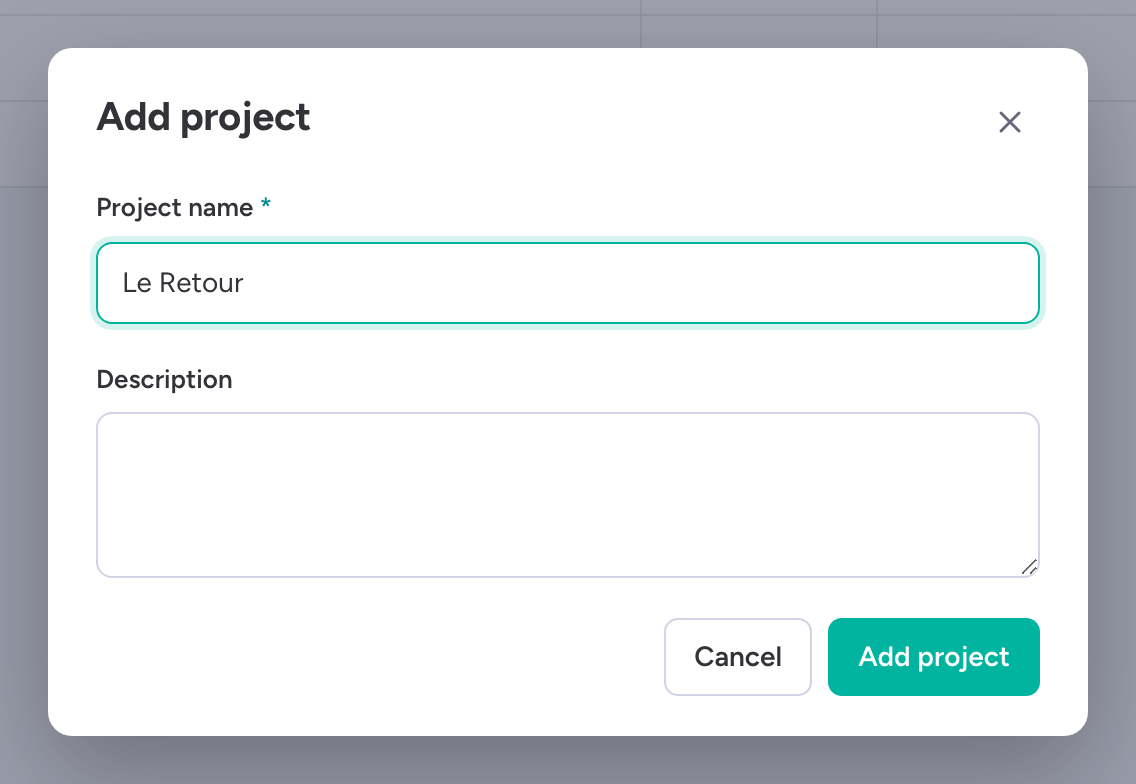
One name. You land on the project straight away. (1) Add project; (2) Name.

One name. You land on the project straight away.

  • 1Add project
  • 2Name
×
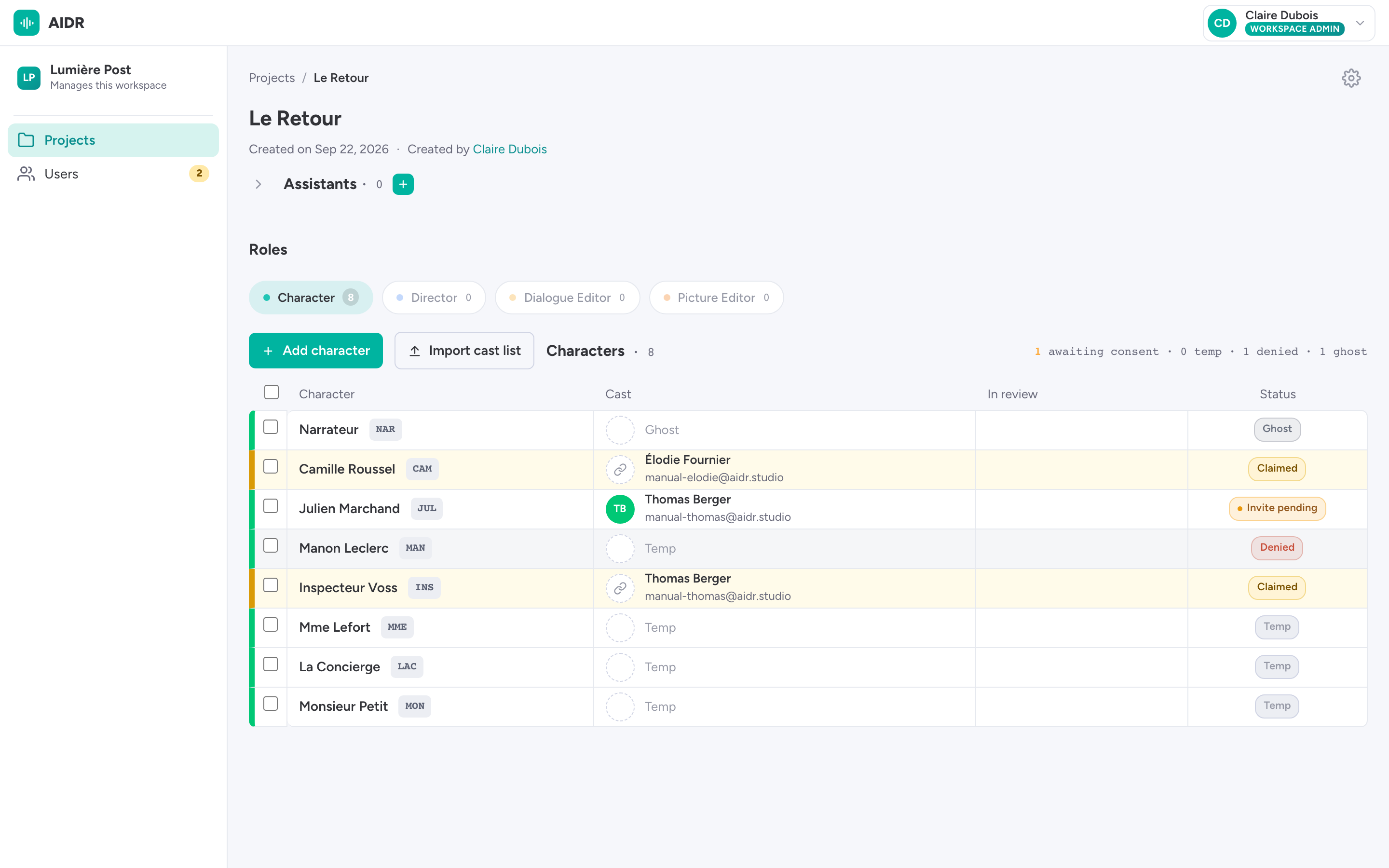
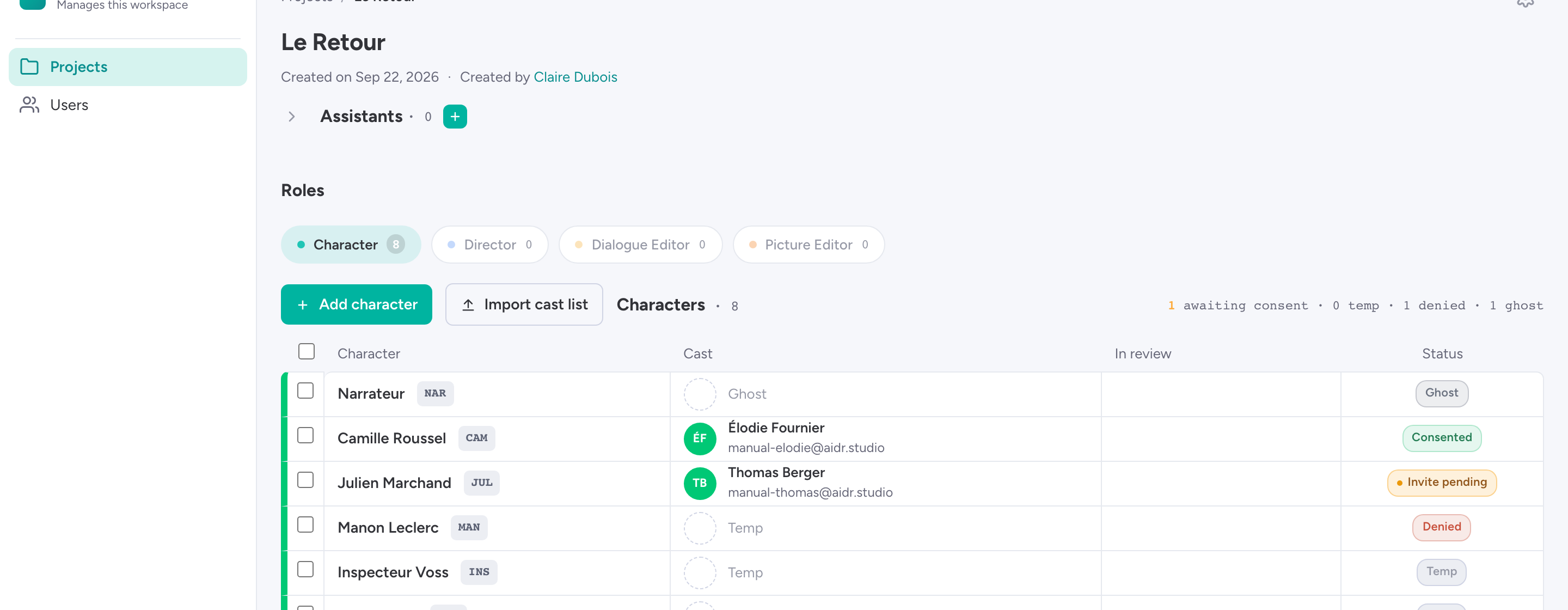
Add the characters. The code comes from the name. (1) Add character; (2) Code; (3) Temp: no consenting actor yet.

Add the characters. The code comes from the name.

  • 1Add character
  • 2Code
  • 3Temp: no consenting actor yet
×
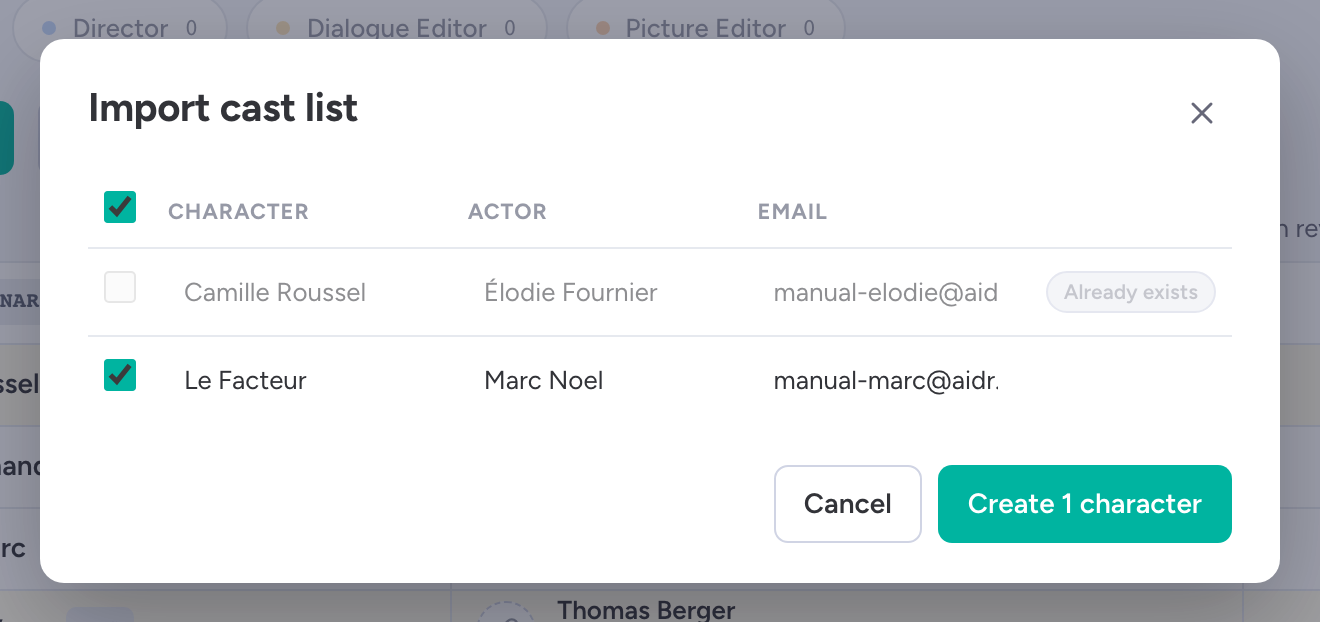
Or drop the cast list. Check the rows, then create. (1) Characters and actors found; (2) Already in the project; (3) Create characters.

Or drop the cast list. Check the rows, then create.

  • 1Characters and actors found
  • 2Already in the project
  • 3Create characters

Actors and consent

×
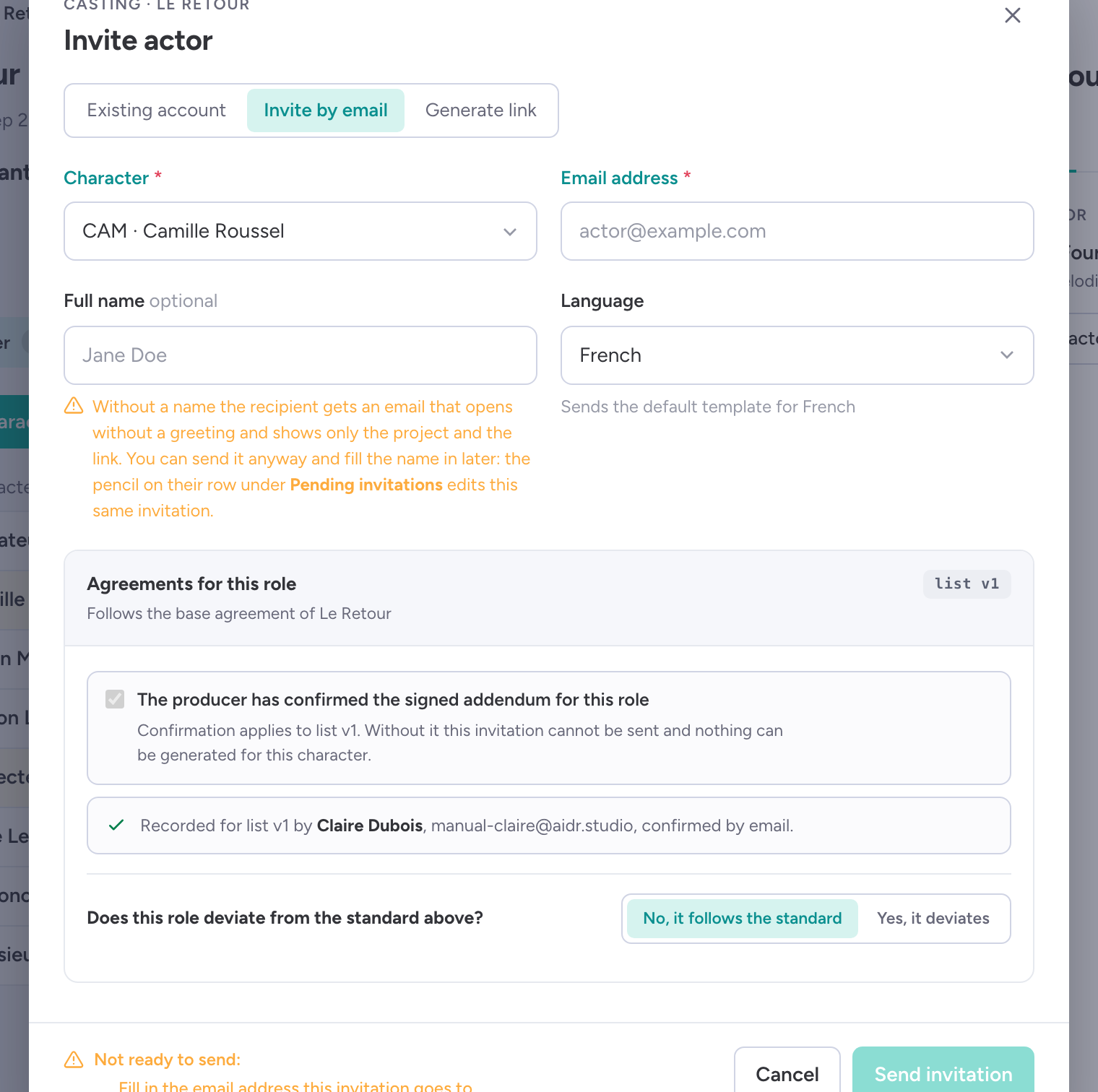
Invite the actor who plays the character. The agreement travels with the invitation. (1) Character; (2) Email address; (3) Language of the mail; (4) Agreements for this role; (5) Send invitation, or generate a link.

Invite the actor who plays the character. The agreement travels with the invitation.

  • 1Character
  • 2Email address
  • 3Language of the mail
  • 4Agreements for this role
  • 5Send invitation, or generate a link
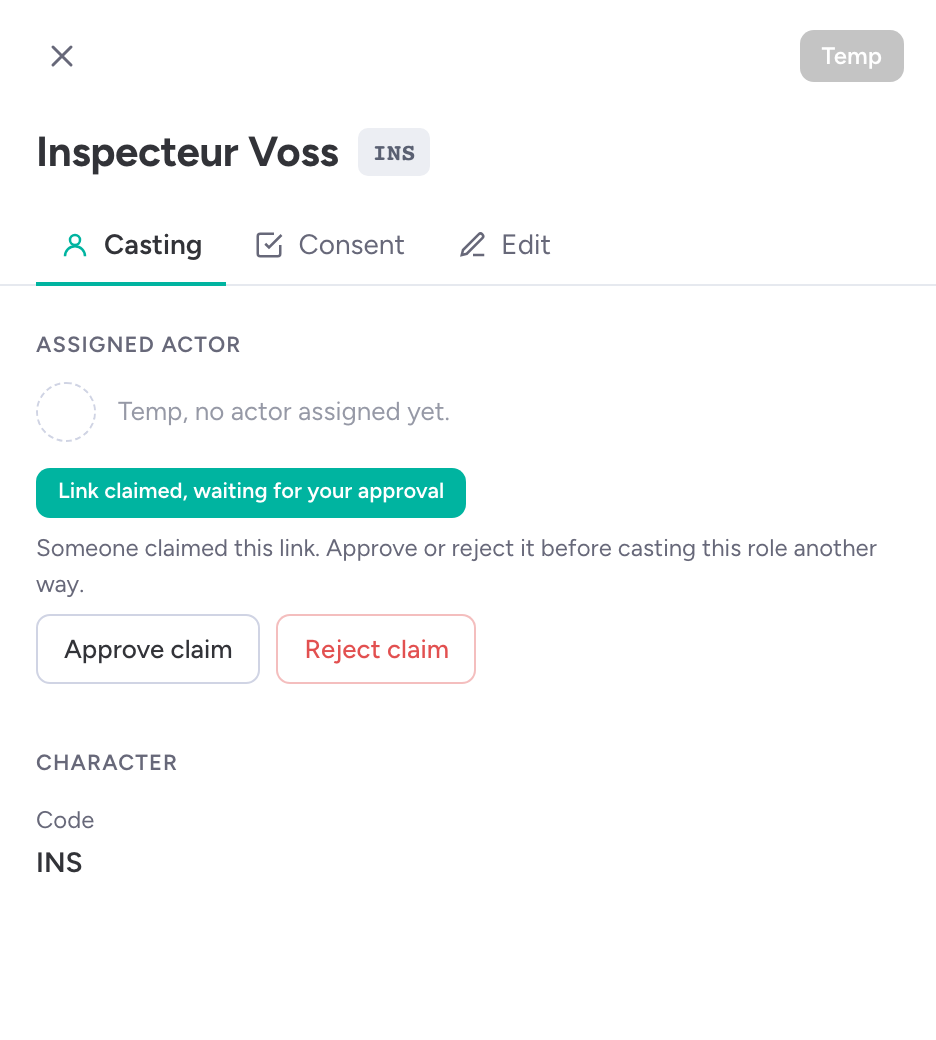
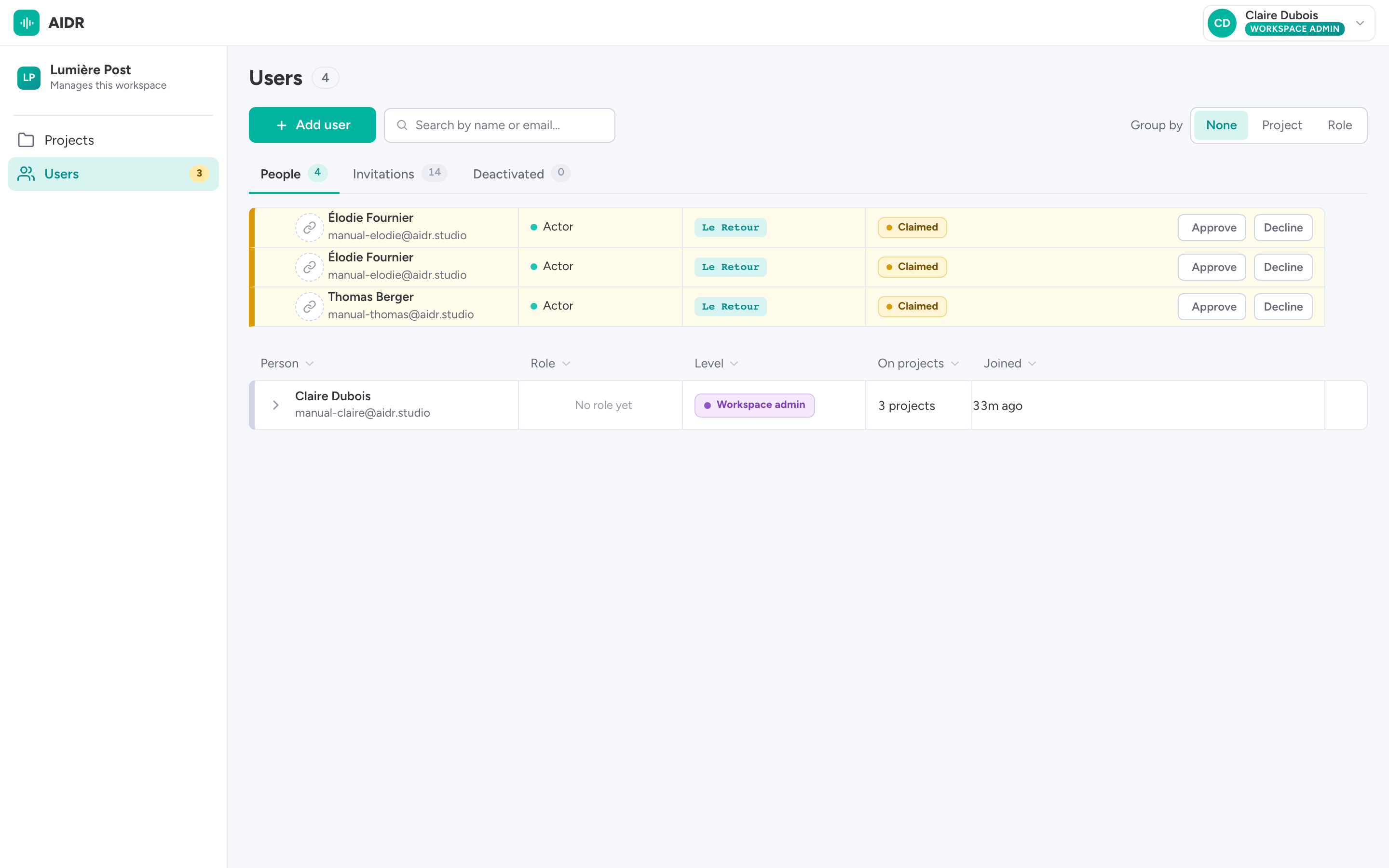
The actor signs the agreement. You approve the claim. (1) Claimed, waiting for your approval; (2) Approve claim.

The actor signs the agreement. You approve the claim.

  • 1Claimed, waiting for your approval
  • 2Approve claim

Consent per character.

  • 1Consented
  • 2Invite pending
  • 3Denied
  • 4Ghost: nobody plays it

The crew

×
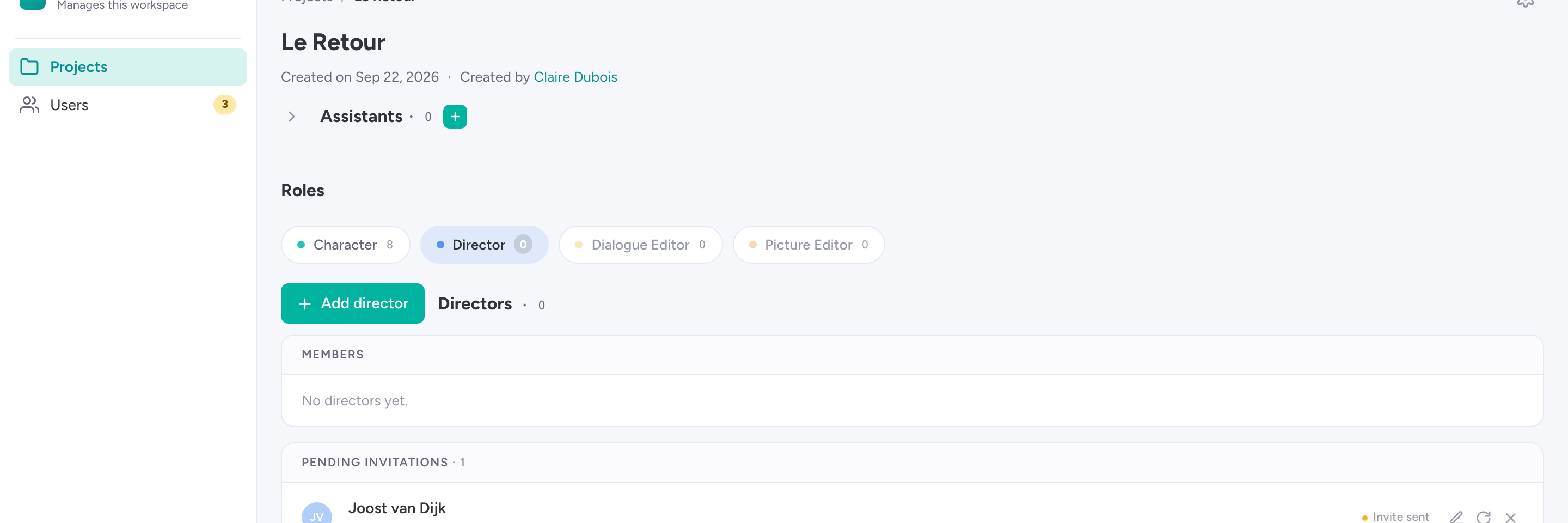
One tab per profession. (1) Tabs; (2) Add; (3) Invite pending: resend or withdraw.

One tab per profession.

  • 1Tabs
  • 2Add
  • 3Invite pending: resend or withdraw
×
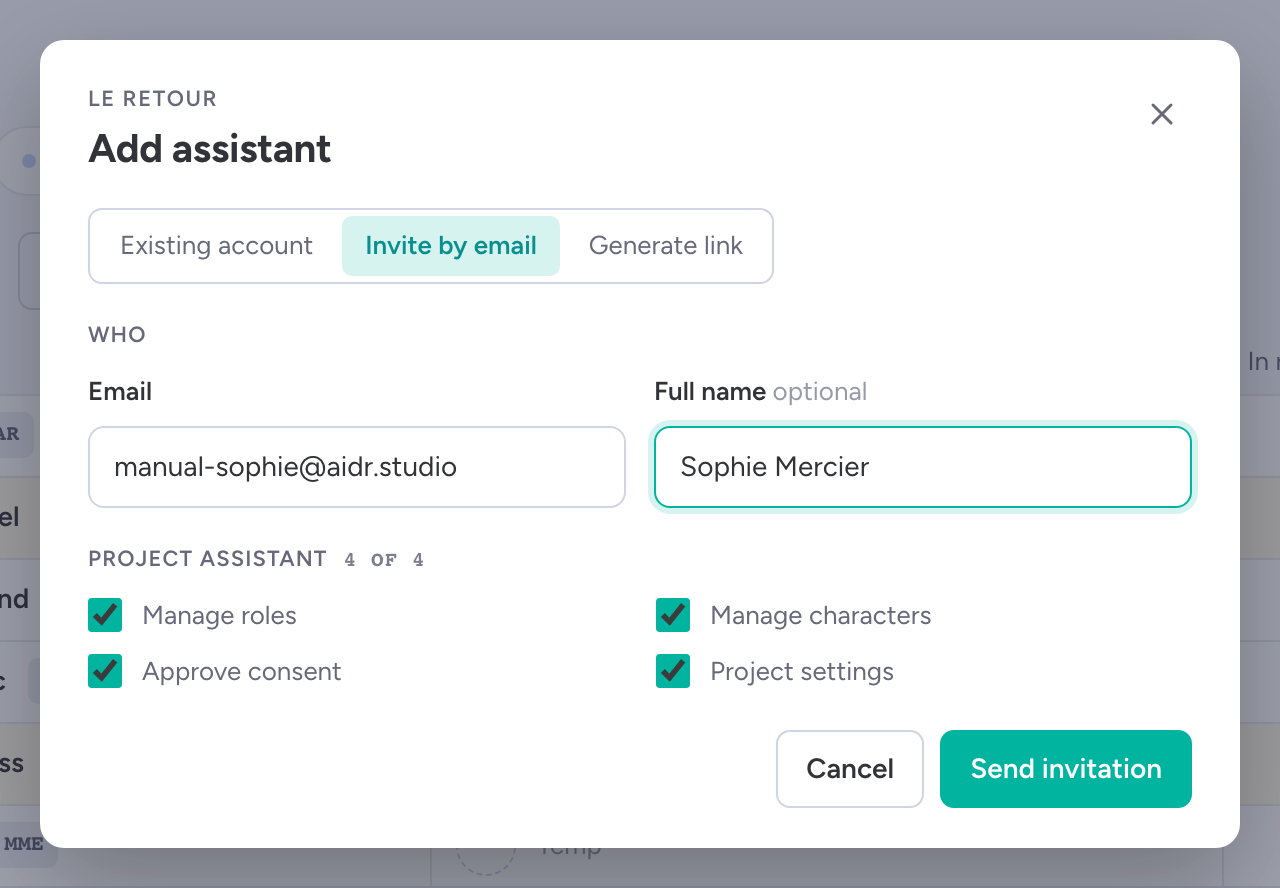
An assistant gets exactly what you tick. (1) Capabilities; (2) What they will be able to do.

An assistant gets exactly what you tick.

  • 1Capabilities
  • 2What they will be able to do
×
Everyone in your workspace, and every open invitation. (1) Level; (2) Invitations.

Everyone in your workspace, and every open invitation.

  • 1Level
  • 2Invitations
×
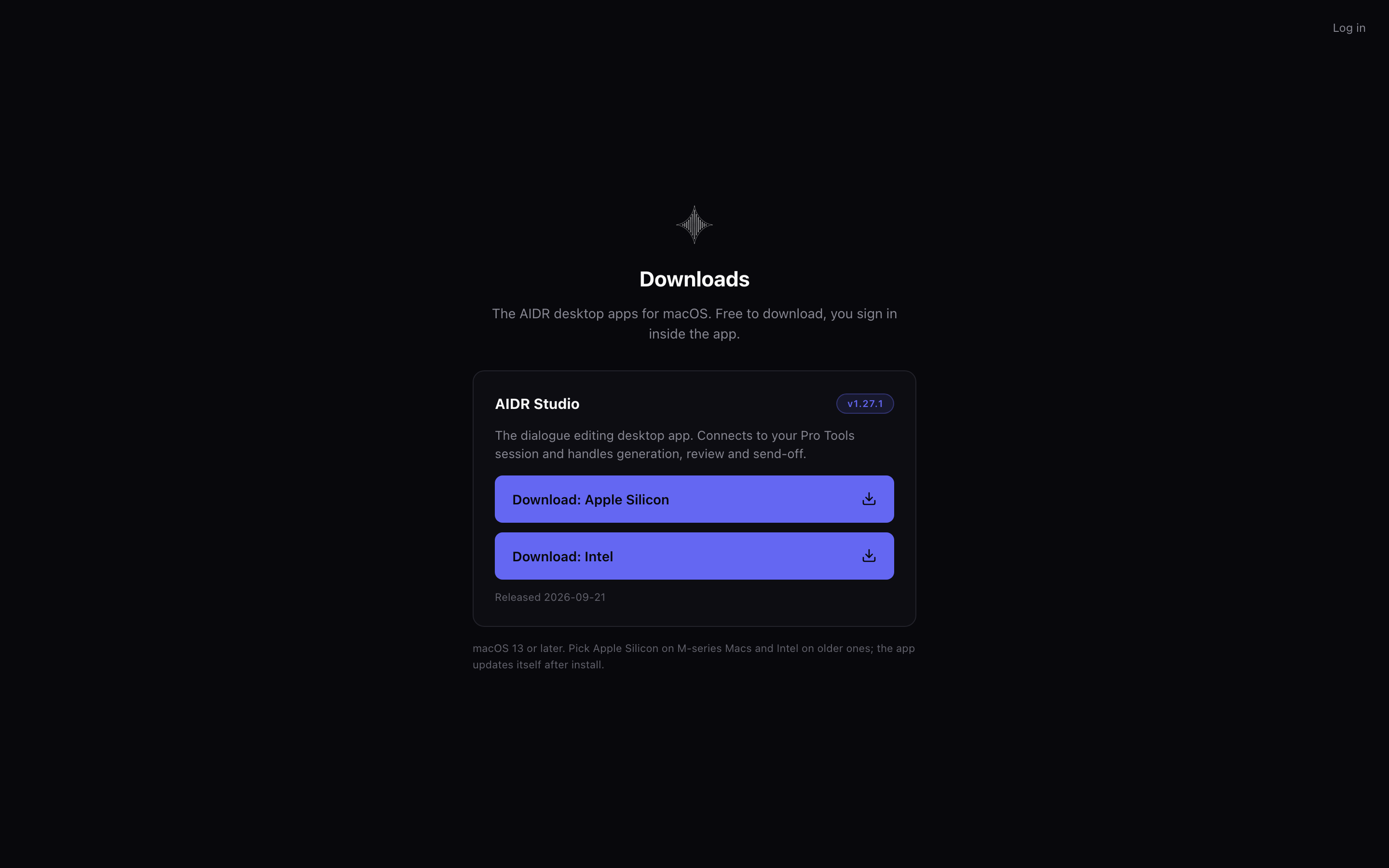
Send your dialogue editor here for AIDR Studio. (1) Apple Silicon; (2) Intel.

Send your dialogue editor here for AIDR Studio.

  • 1Apple Silicon
  • 2Intel

Part B

Work in AIDR Studio

For: Dialogue editor · AIDR Studio next to Pro Tools

Start

×
Sign in with the account your invitation went to. Pick the project, open your Pro Tools session. (1) Project; (2) Pro Tools connection.
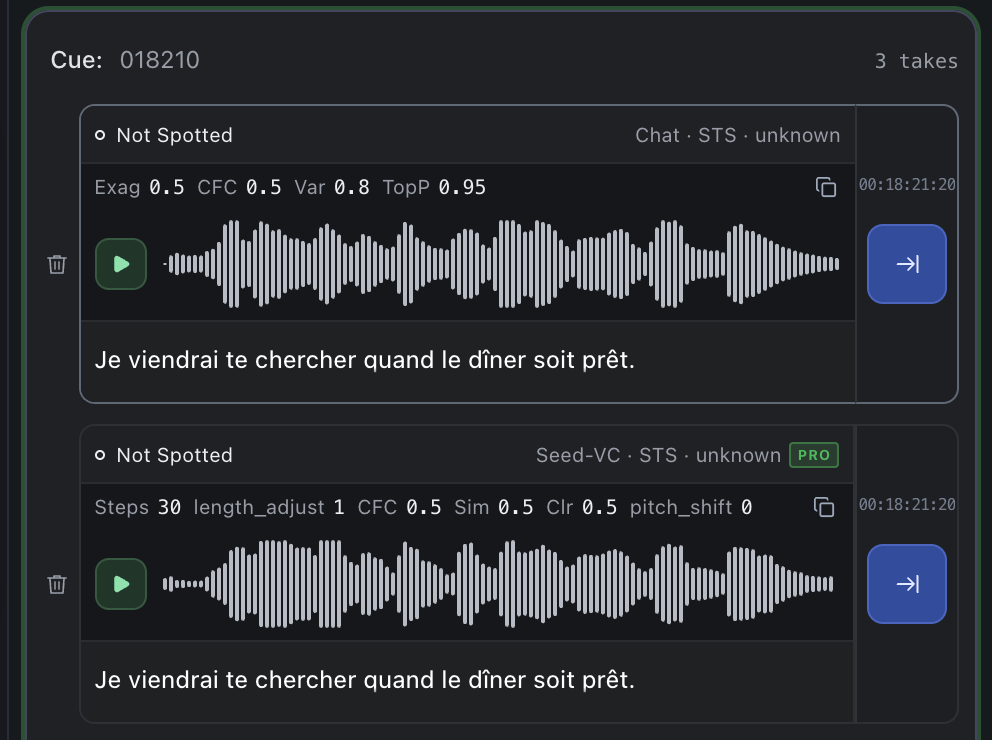
Sign in with the account your invitation went to. Pick the project, open your Pro Tools session.
  • 1Project
  • 2Pro Tools connection
×
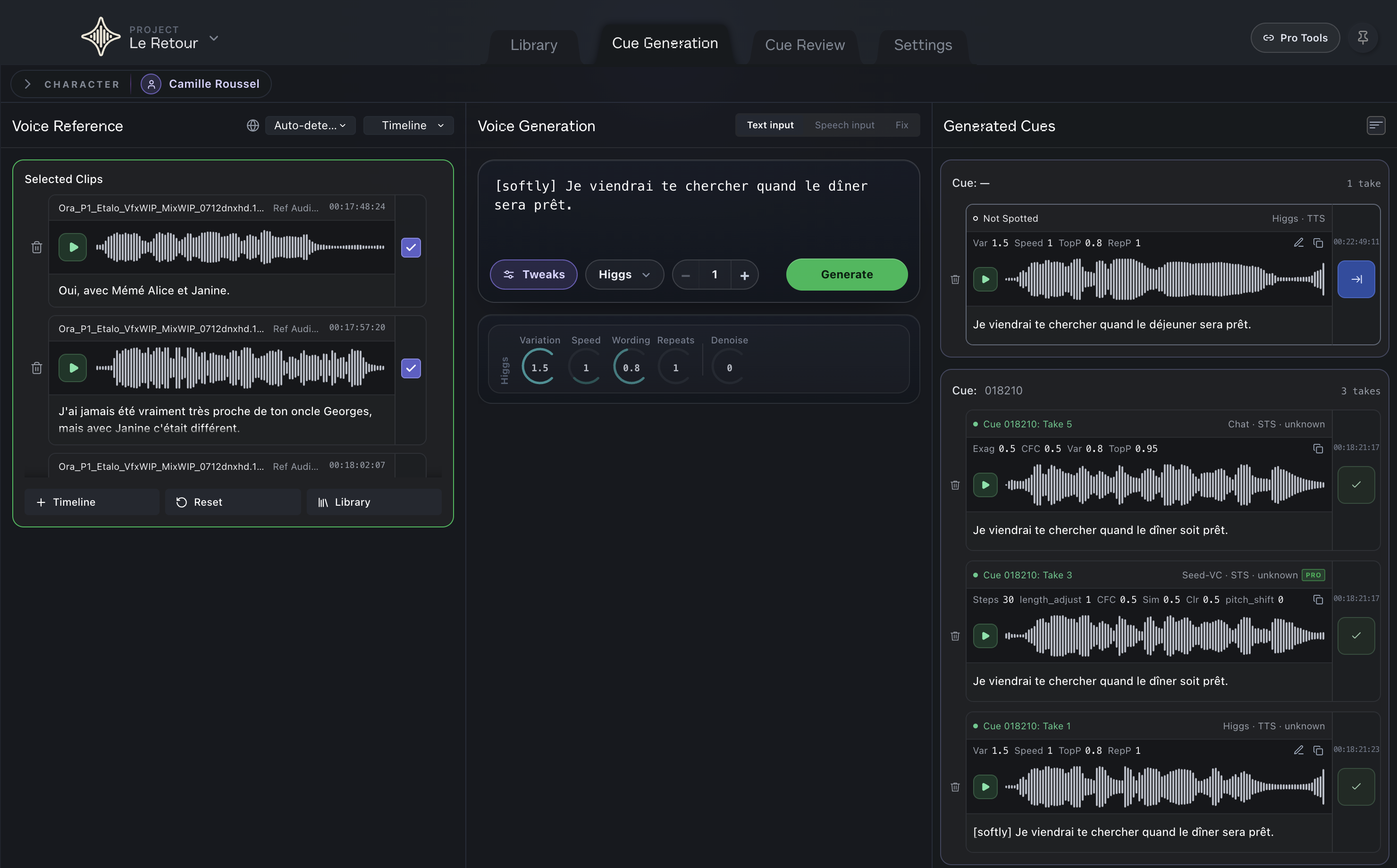
Three tabs, three panels. AIDR Studio follows your Pro Tools selection. (1) Library; (2) Cue Generation; (3) Cue Review; (4) Settings; (5) Voice Reference; (6) Voice Generation; (7) Generated Cues; (8) Pro Tools connection.

Three tabs, three panels. AIDR Studio follows your Pro Tools selection.

  • 1Library
  • 2Cue Generation
  • 3Cue Review
  • 4Settings
  • 5Voice Reference
  • 6Voice Generation
  • 7Generated Cues
  • 8Pro Tools connection
×
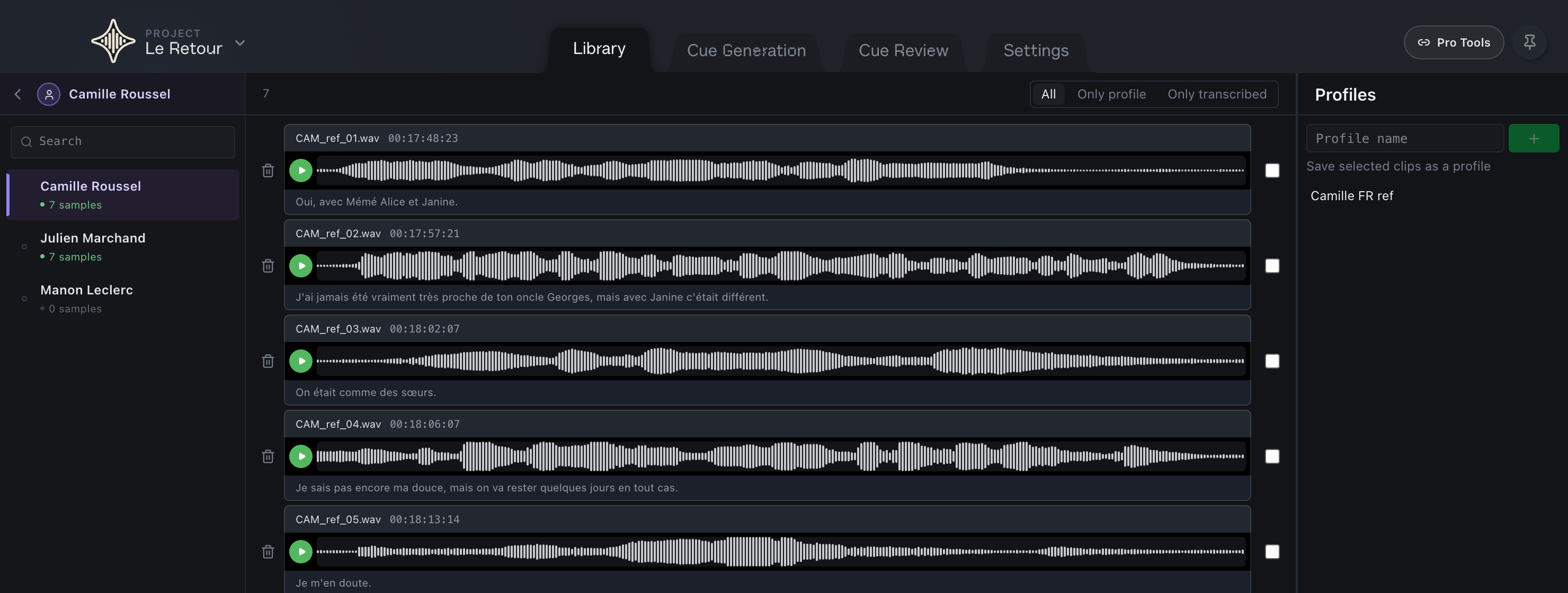
Pick the character in the Library. Everything you make belongs to it. (1) Library; (2) Characters in this project.

Pick the character in the Library. Everything you make belongs to it.

  • 1Library
  • 2Characters in this project

The reference

×
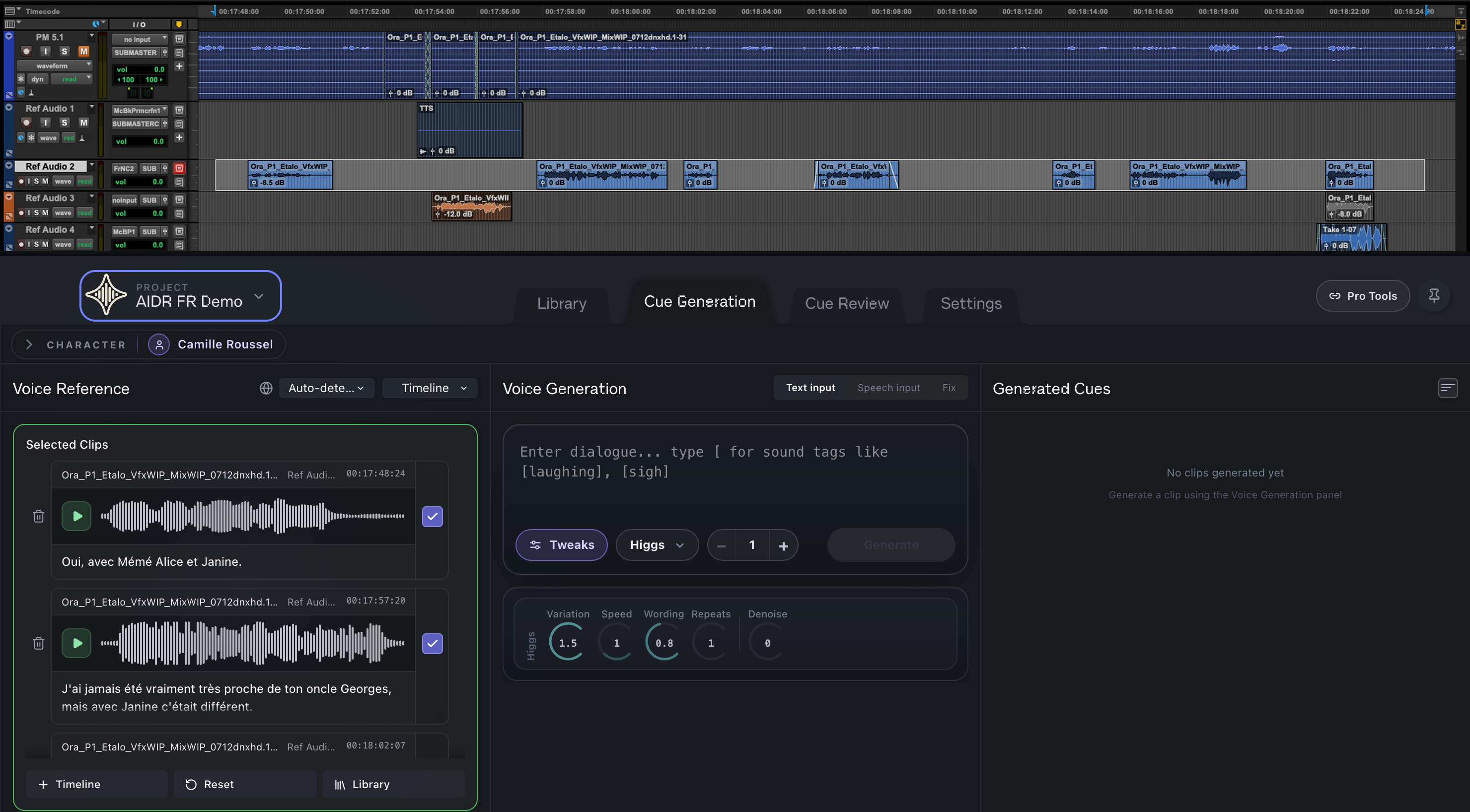
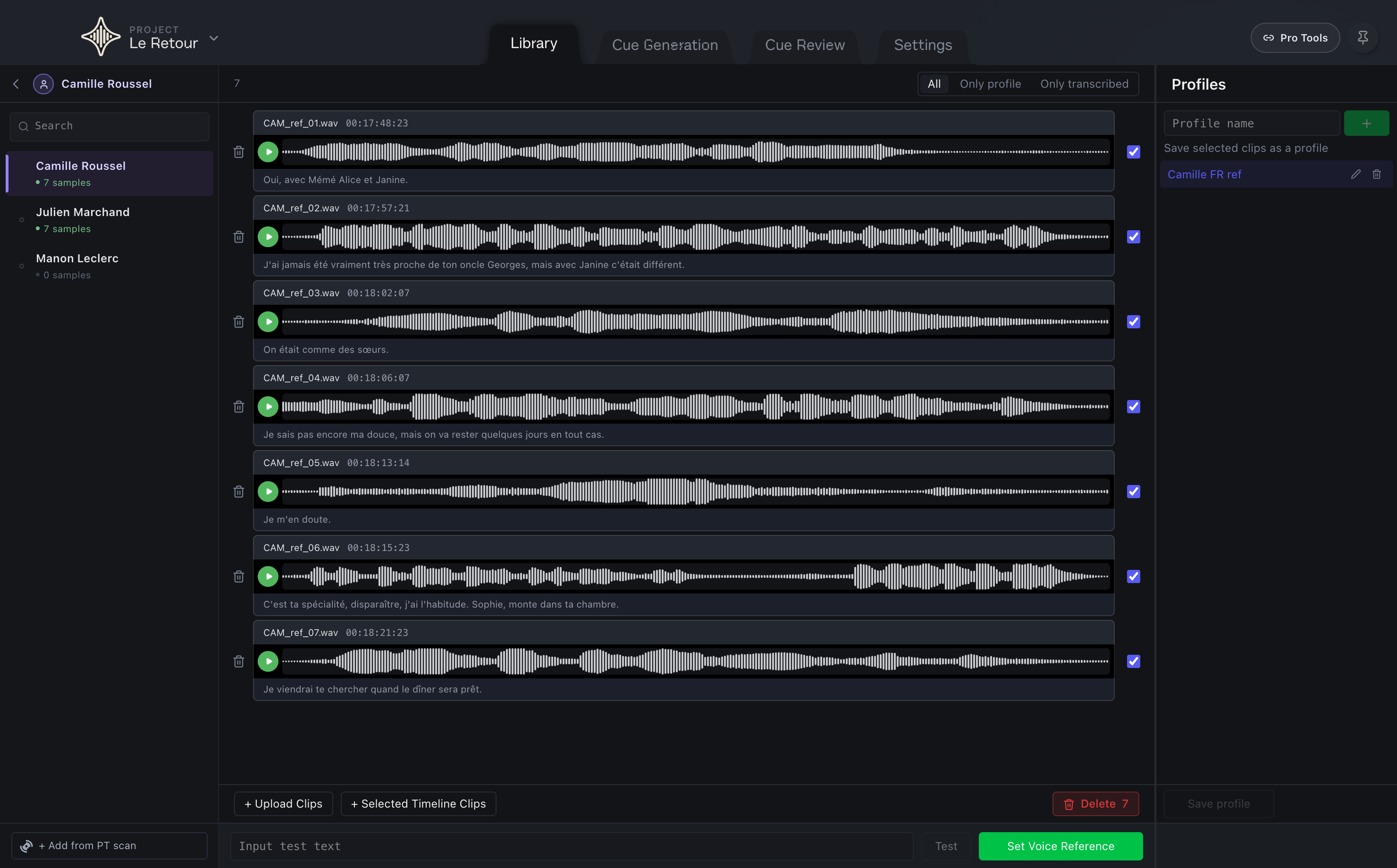
Select the original in Pro Tools, then Use selected clips. (1) Your selection in Pro Tools; (2) The reference, clip by clip; (3) Transcription: fix it if it is wrong; (4) Language: set it on short clips.
Select the original in Pro Tools, then Use selected clips.

  • 1Your selection in Pro Tools
  • 2The reference, clip by clip
  • 3Transcription: fix it if it is wrong
  • 4Language: set it on short clips
Watch out

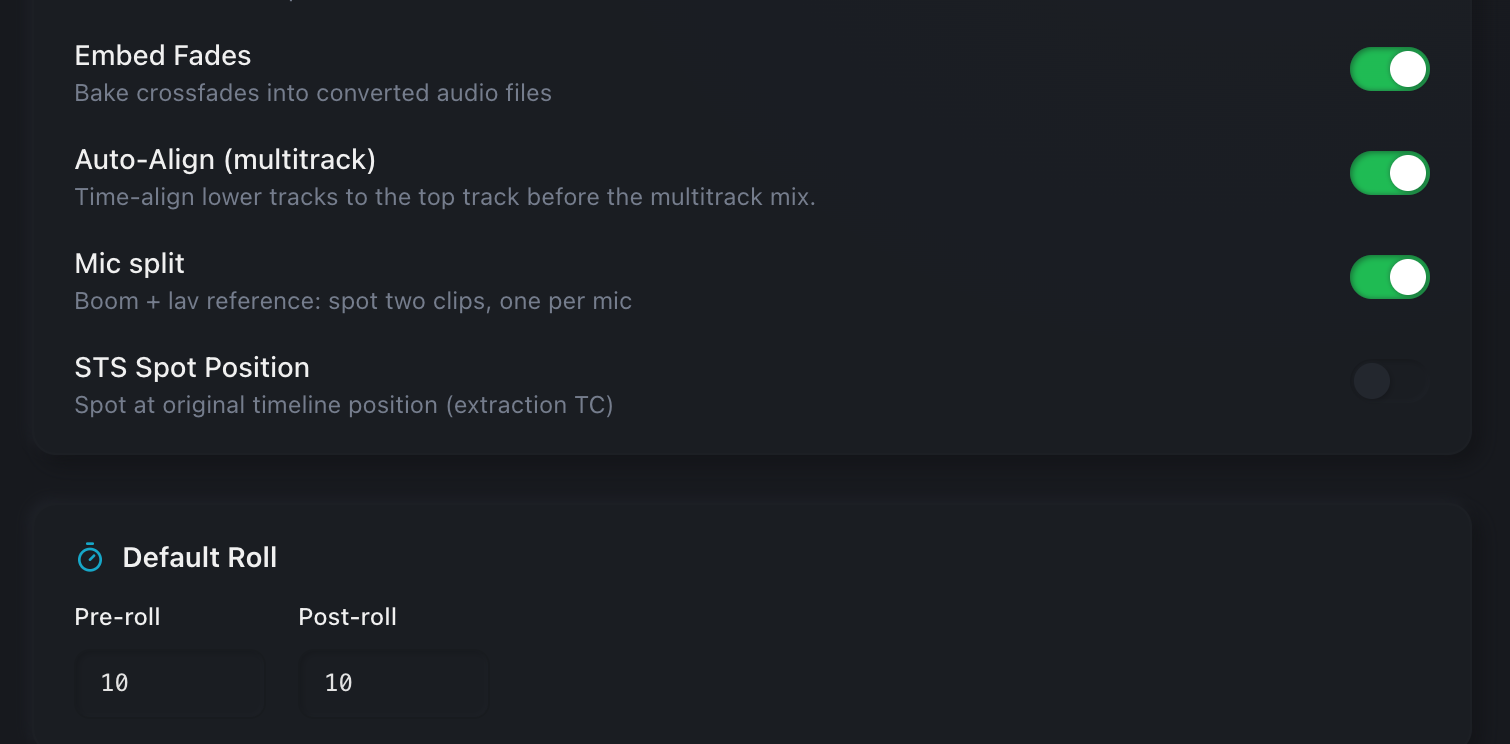
Boom and lav on two tracks become one mix. Keep Auto-Align on in Settings so they line up first.

×
A strong performance? Keep it as a profile and use it in any scene. (1) Profile; (2) Its clips; (3) Add clips from the timeline; (4) Use as reference.

A strong performance? Keep it as a profile and use it in any scene.

  • 1Profile
  • 2Its clips
  • 3Add clips from the timeline
  • 4Use as reference

From text

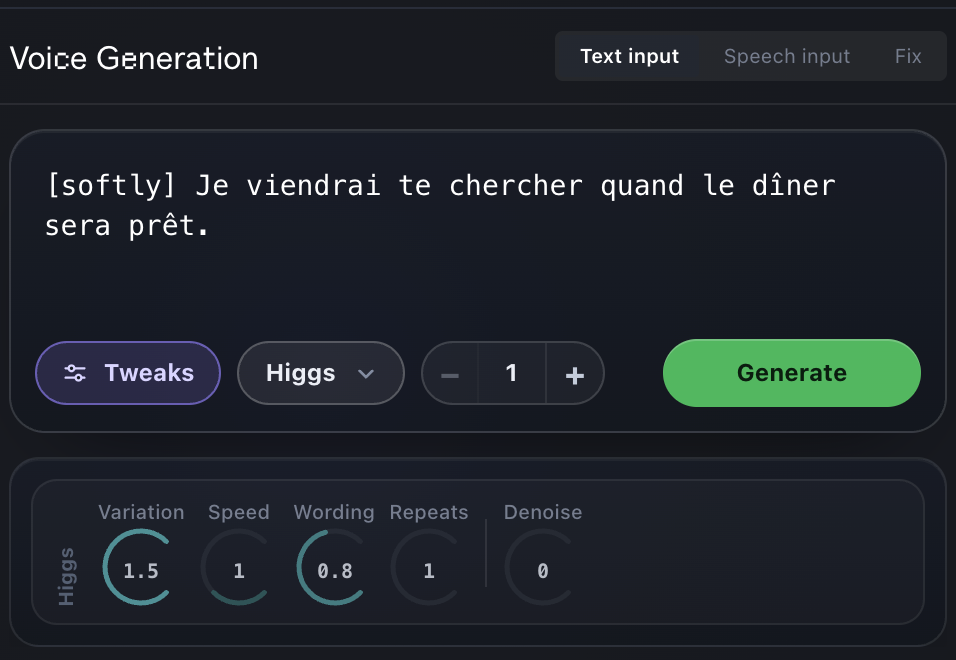
Put the Pro Tools cursor on the cue. Type the line. (1) Text input; (2) Direction in square brackets; (3) Engine; (4) Takes per click; (5) Generate.

Put the Pro Tools cursor on the cue. Type the line.

  • 1Text input
  • 2Direction in square brackets
  • 3Engine
  • 4Takes per click
  • 5Generate
Watch out

A tag colours the read. It does not turn a shout into a whisper; for that, record a profile from the real performance.

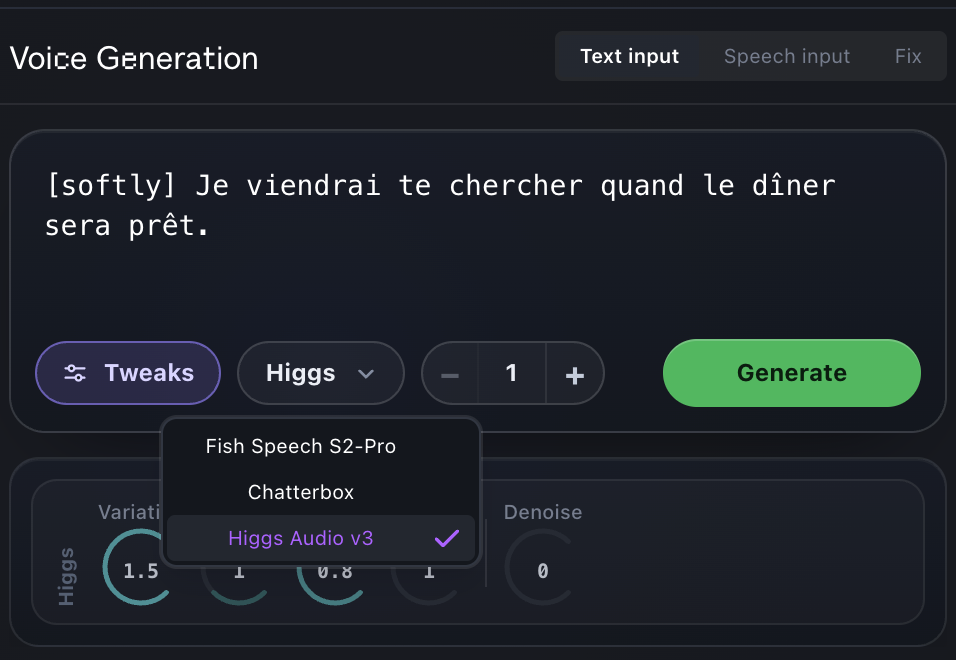
The engines this project may use. Try more than one on the same line.

The engines this project may use. Try more than one on the same line.

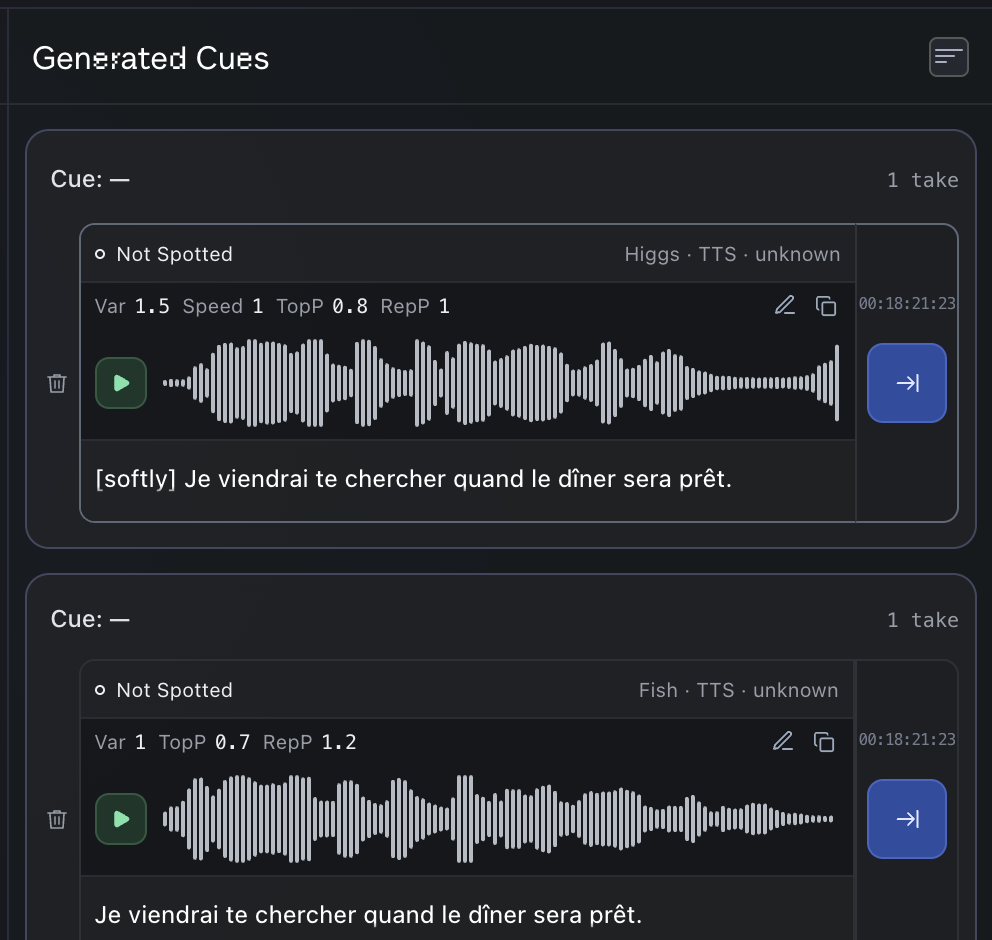
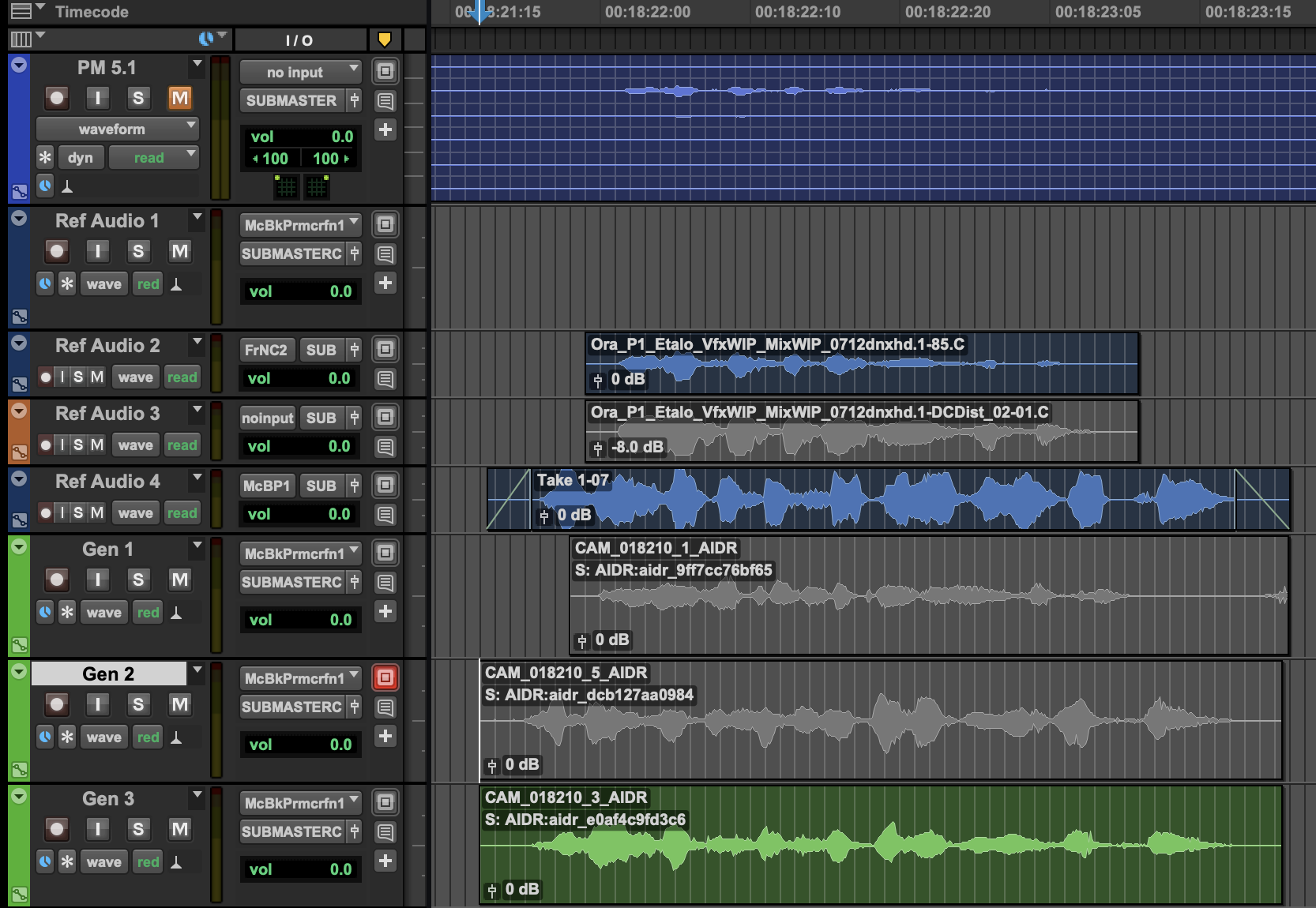
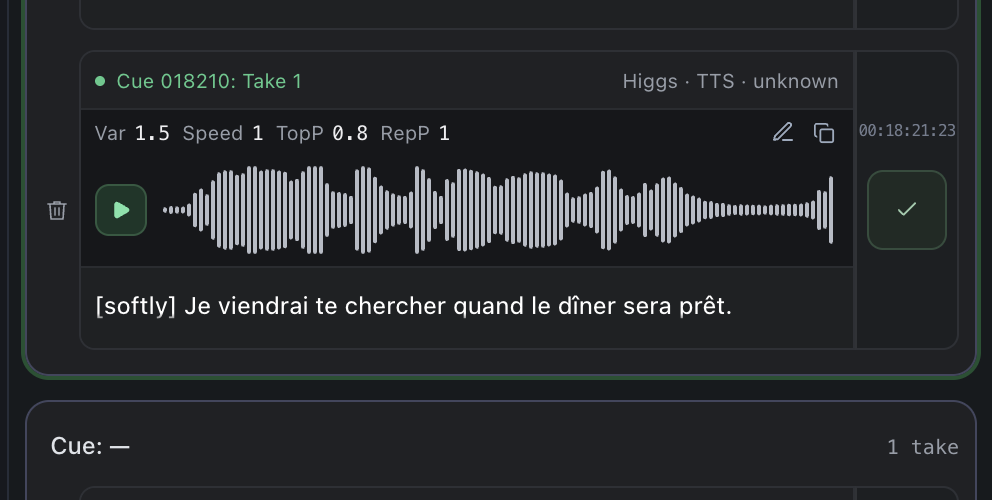
Every take lands here. Listen before you spot. (1) Play; (2) Engine and method; (3) Not on the timeline yet; (4) Spot.

Every take lands here. Listen before you spot.

  • 1Play
  • 2Engine and method
  • 3Not on the timeline yet
  • 4Spot
Watch out

The first take after switching engine is slow. After that it takes seconds.

×
Select a track in Pro Tools and spot. The take lands on it with a readable name. (1) Character, cue, take; (2) The ID AIDR finds it back by; (3) The original stays.

Select a track in Pro Tools and spot. The take lands on it with a readable name.

  • 1Character, cue, take
  • 2The ID AIDR finds it back by
  • 3The original stays
Watch out

Keep the ID in the clip name, also after AudioSuite.

From speech

×
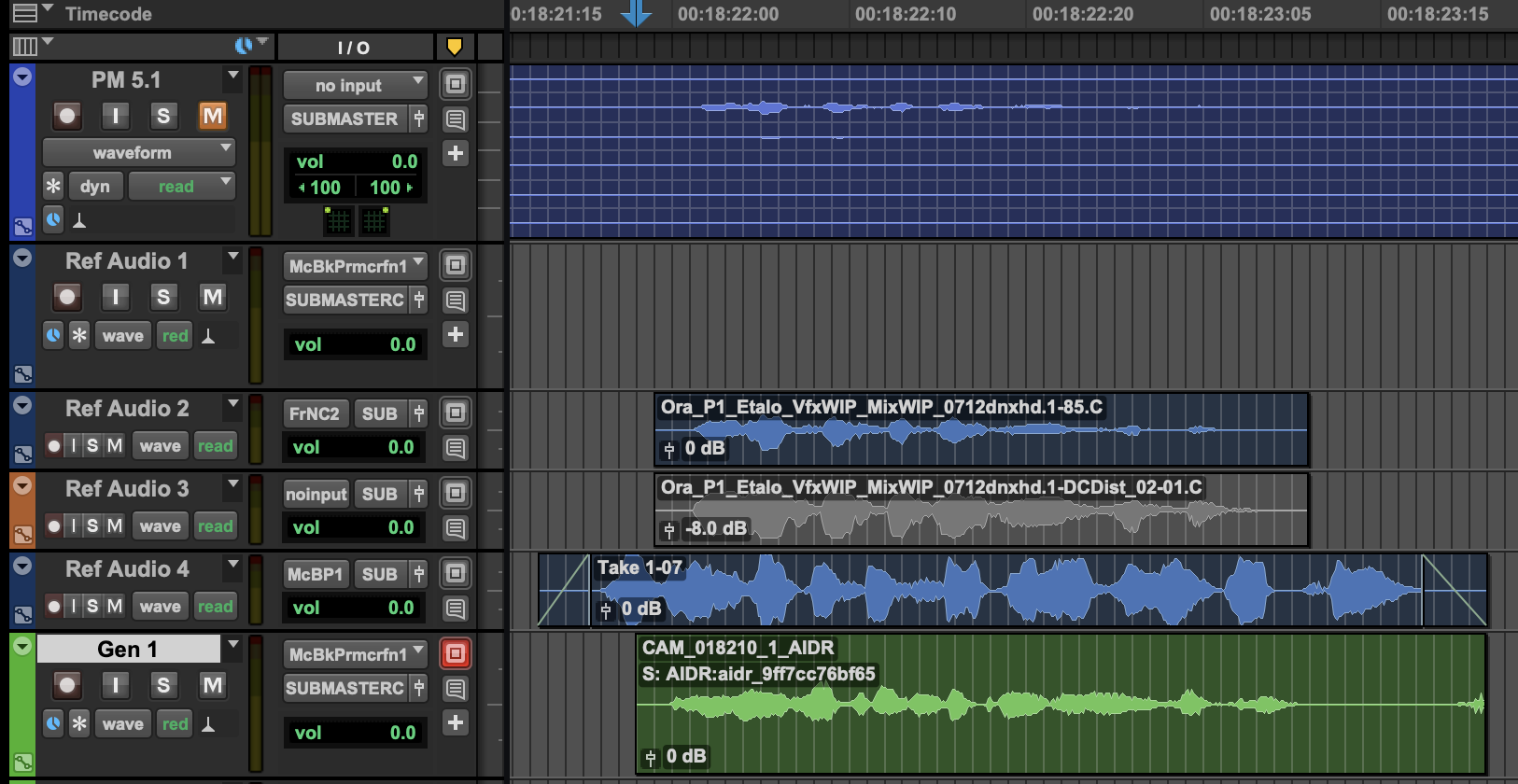
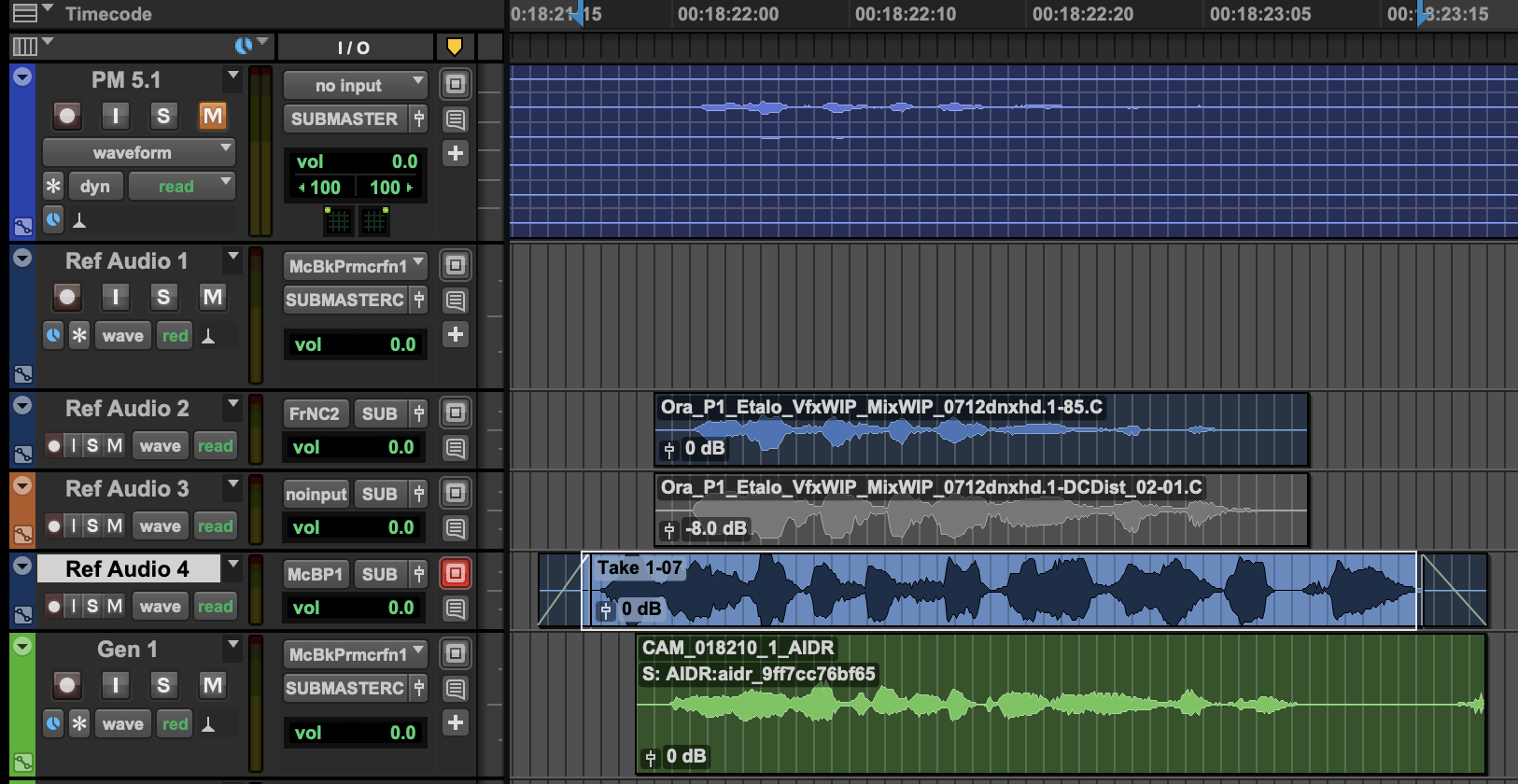
Record the line yourself, or use a stand-in. Select that clip. (1) Your recording; (2) The original.

Record the line yourself, or use a stand-in. Select that clip.

  • 1Your recording
  • 2The original
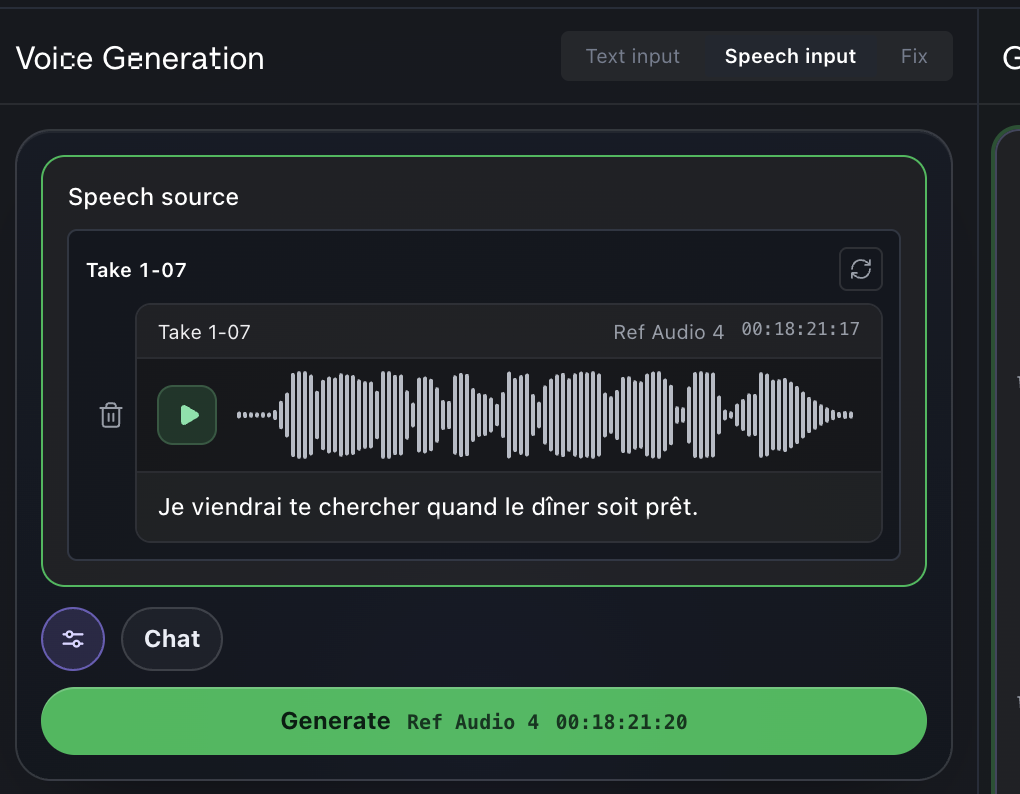
Speech input, then Use selected clip. (1) Speech input; (2) Source clip; (3) What it says; (4) Generate.

Speech input, then Use selected clip.

  • 1Speech input
  • 2Source clip
  • 3What it says
  • 4Generate
×
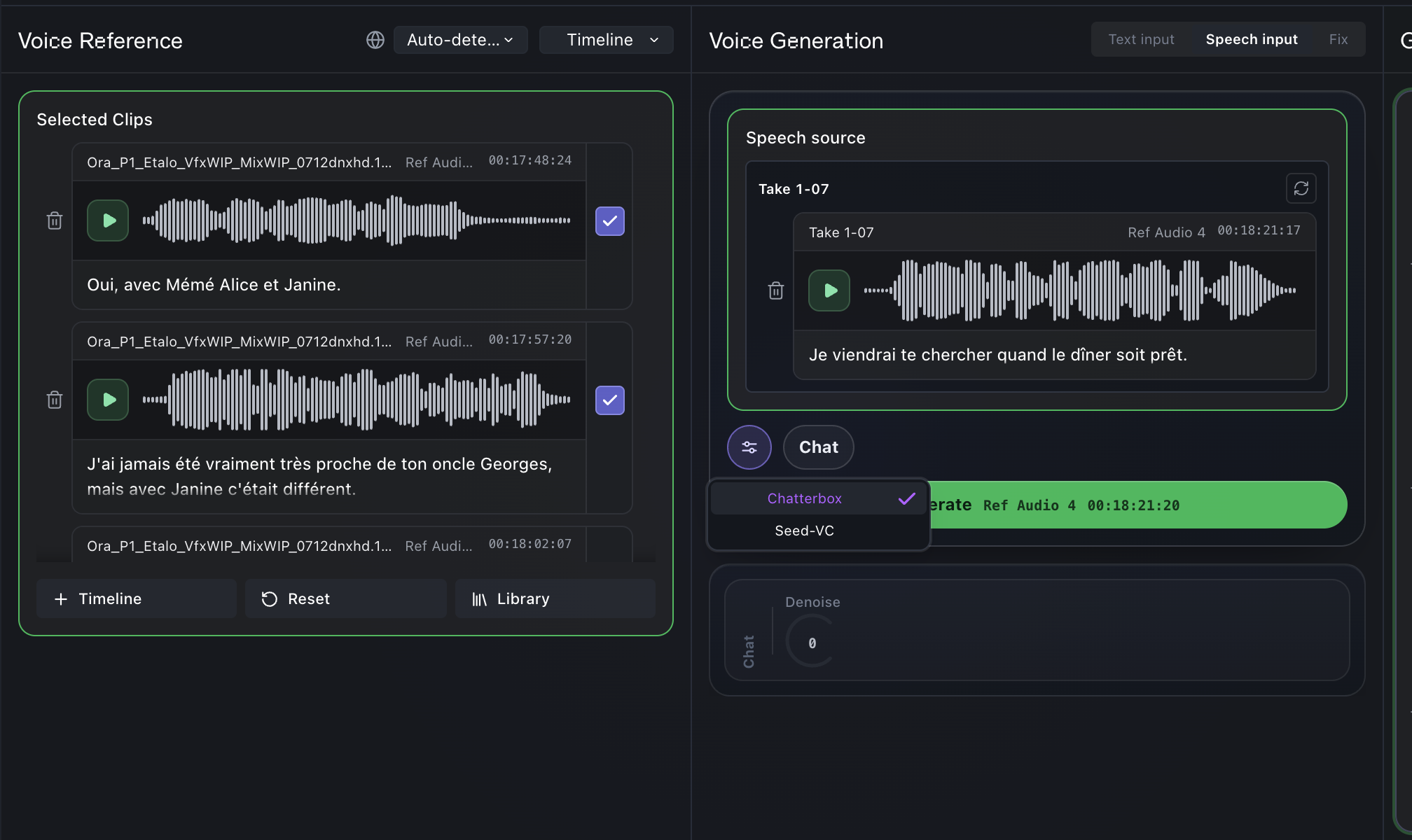
The voice comes from the reference. Choose the engine. (1) The actor's voice; (2) Chatterbox or Seed-VC.

The voice comes from the reference. Choose the engine.

  • 1The actor's voice
  • 2Chatterbox or Seed-VC
Your timing and delivery, in the actor's voice. (1) Chatterbox; (2) Seed-VC.

Your timing and delivery, in the actor's voice.

  • 1Chatterbox
  • 2Seed-VC
×
Spot both. Mute what you do not send. (1) Starts where your recording starts; (2) Muted takes stay out of the review.

Spot both. Mute what you do not send.

  • 1Starts where your recording starts
  • 2Muted takes stay out of the review

Fix one word

One word wrong in a good take? Fix only that word. (1) Fix a word.

One word wrong in a good take? Fix only that word.

  • 1Fix a word
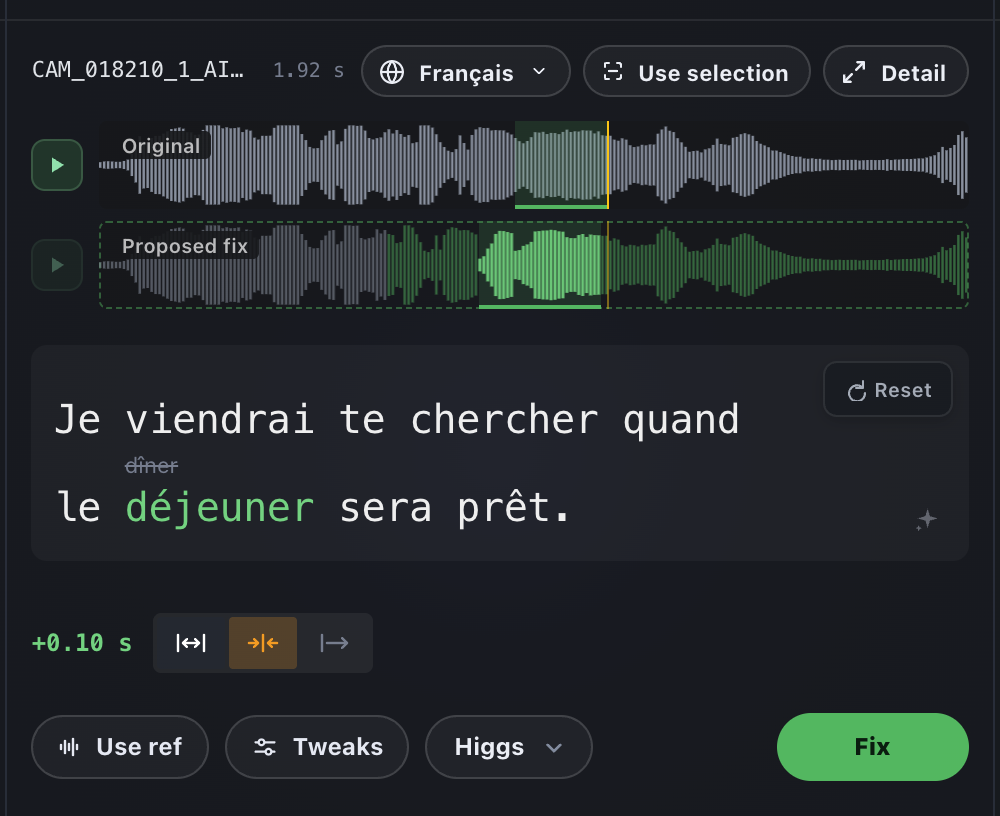
Change the word. The rest of the take stays as it was. (1) New word, old word above it; (2) Before and after; (3) Longer word: same length, squeeze, or run longer; (4) Fix.

Change the word. The rest of the take stays as it was.

  • 1New word, old word above it
  • 2Before and after
  • 3Longer word: same length, squeeze, or run longer
  • 4Fix
×
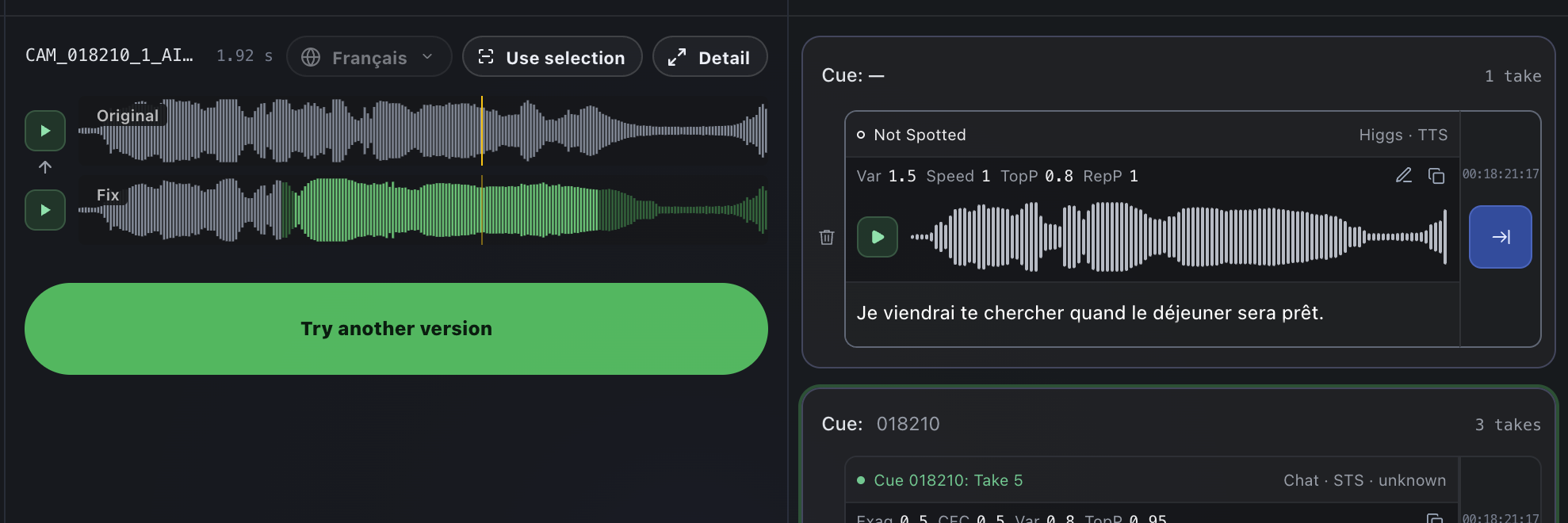
A new take next to the old one. Not right yet? Try another version. (1) The fixed stretch; (2) Try another version; (3) The new take.

A new take next to the old one. Not right yet? Try another version.

  • 1The fixed stretch
  • 2Try another version
  • 3The new take

Review

×
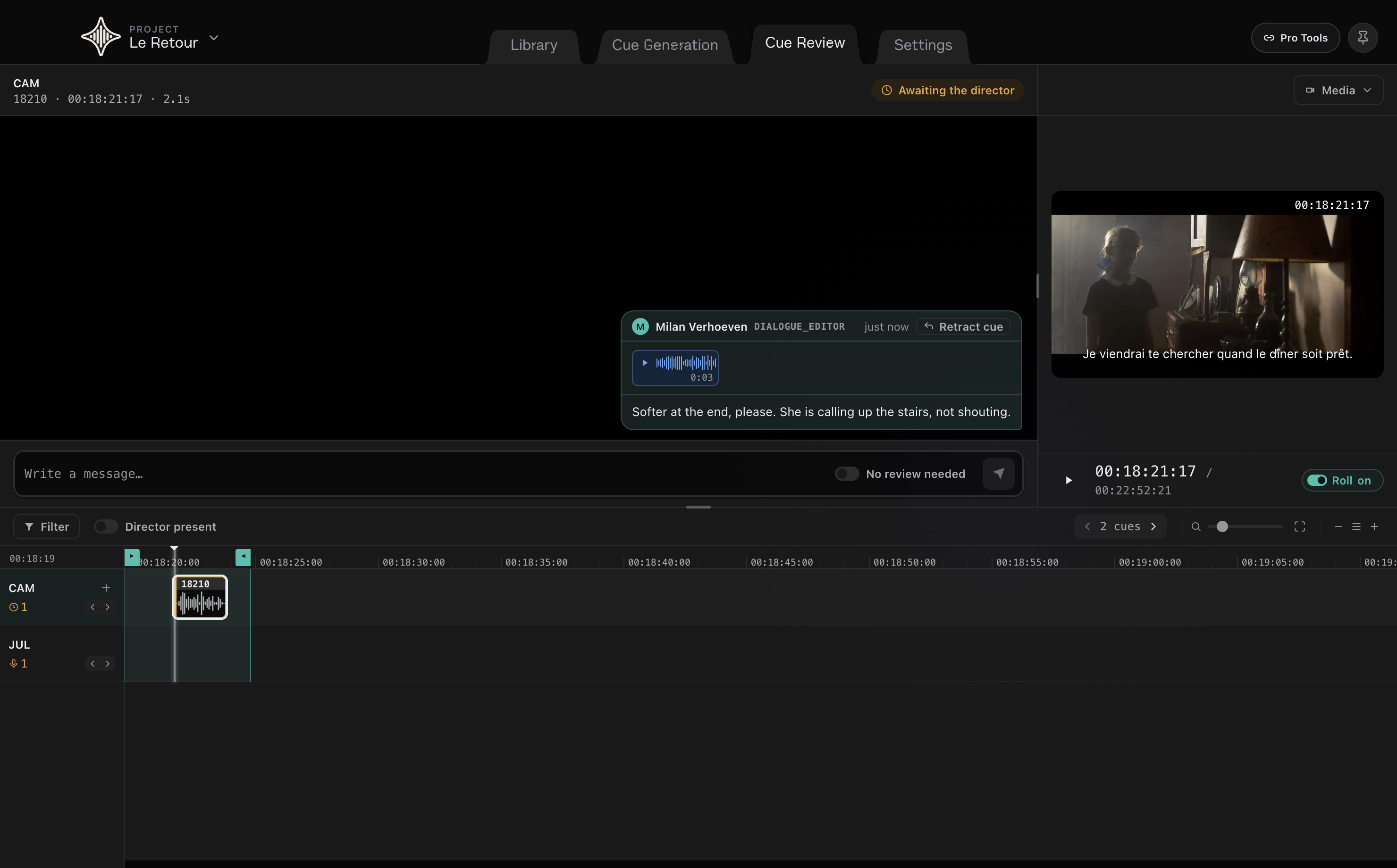
Cue Review: the cues of this character on a timeline, each with its conversation. (1) Cues on the timeline; (2) Where the cue stands; (3) The conversation; (4) The cue on picture.

Cue Review: the cues of this character on a timeline, each with its conversation.

  • 1Cues on the timeline
  • 2Where the cue stands
  • 3The conversation
  • 4The cue on picture
×
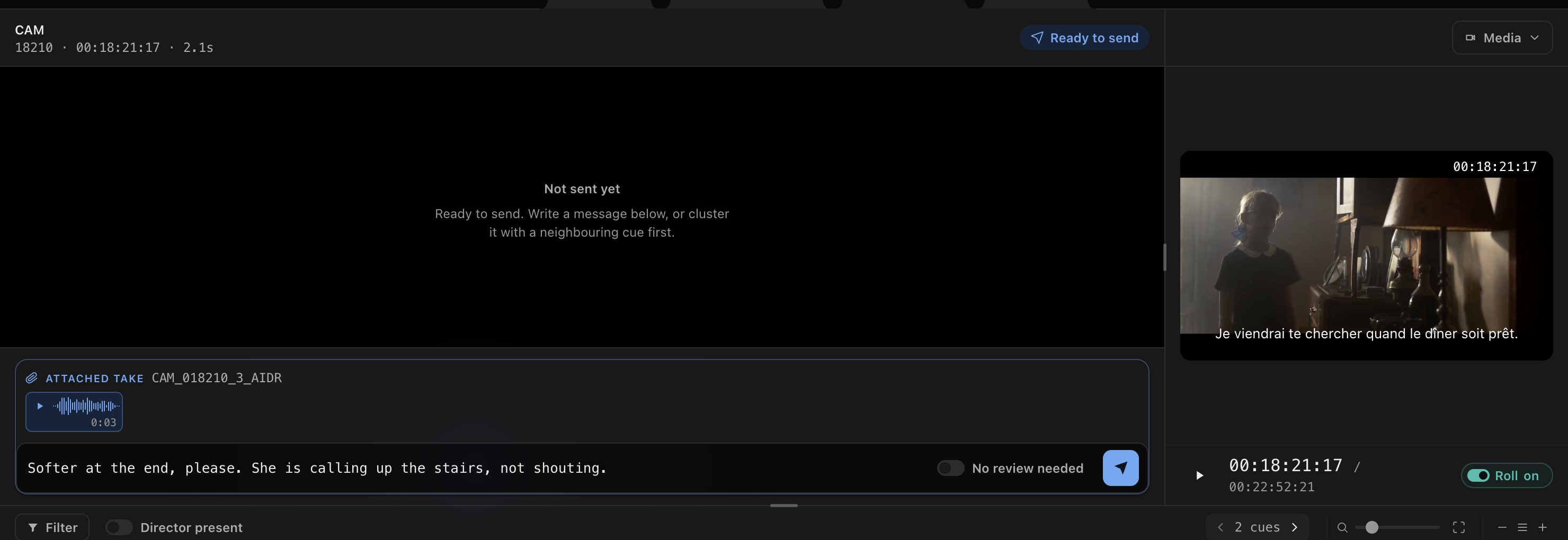
Mute the takes you do not send. Write what you want, then send. (1) The unmuted take goes out; (2) Director present; (3) Message; (4) Send take for review; (5) Picture for the review.

Mute the takes you do not send. Write what you want, then send.

  • 1The unmuted take goes out
  • 2Director present
  • 3Message
  • 4Send take for review
  • 5Picture for the review
Watch out

Director present on: the director sits next to you and the cue goes straight to the actor. Off: the director reviews first.

×
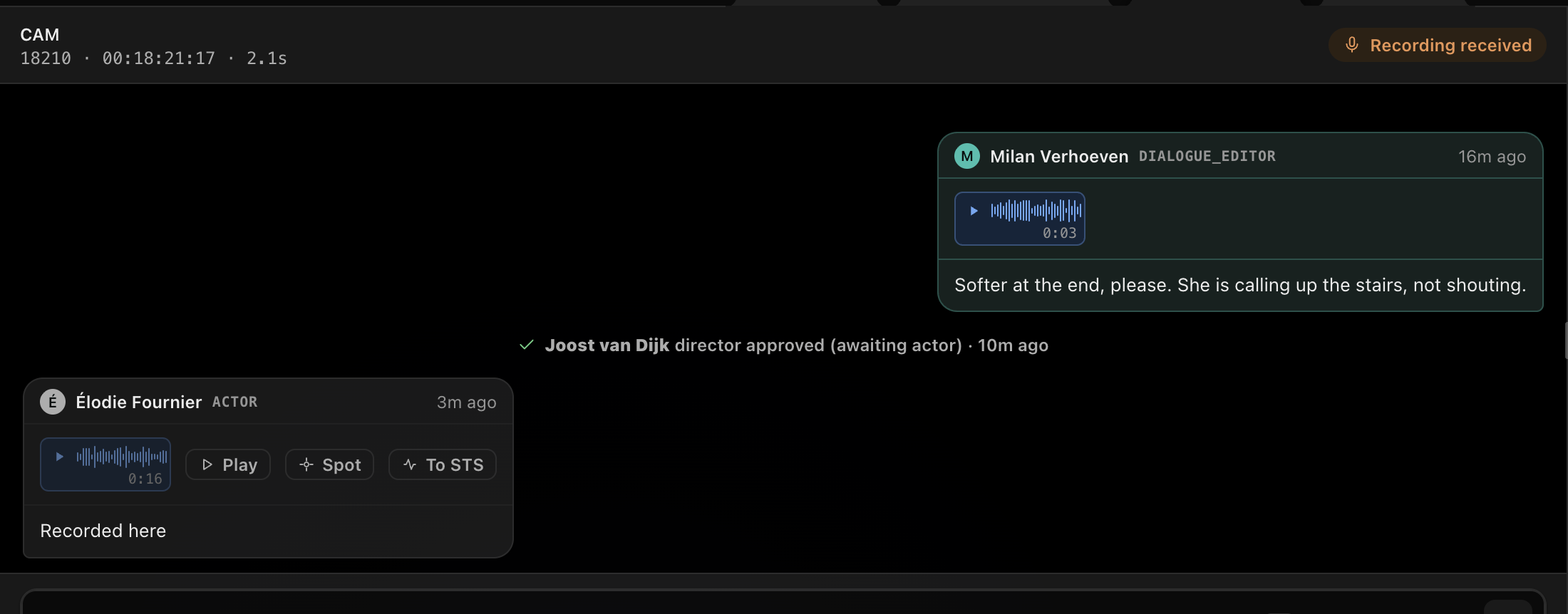
The answer lands on the cue itself. (1) New status; (2) The director approved; (3) The actor recorded it herself.

The answer lands on the cue itself.

  • 1New status
  • 2The director approved
  • 3The actor recorded it herself
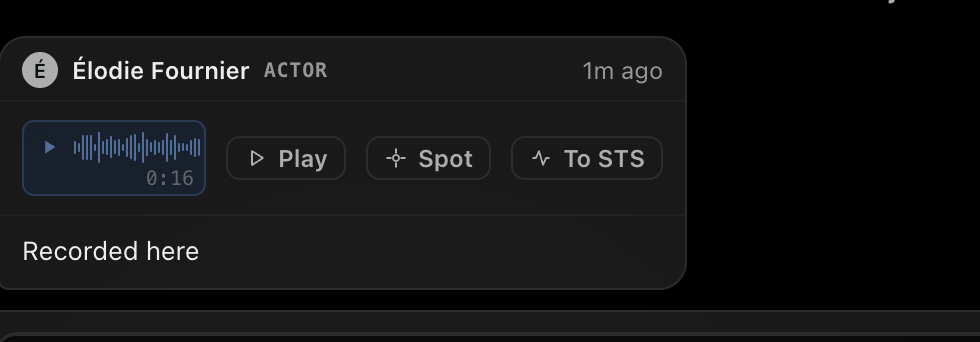
Listen to it, spot it in Pro Tools, or send it to Speech input. (1) Play; (2) Spot (at the Pro Tools cursor); (3) To STS (into Speech input).

Listen to it, spot it in Pro Tools, or send it to Speech input.

  • 1Play
  • 2Spot (at the Pro Tools cursor)
  • 3To STS (into Speech input)
×
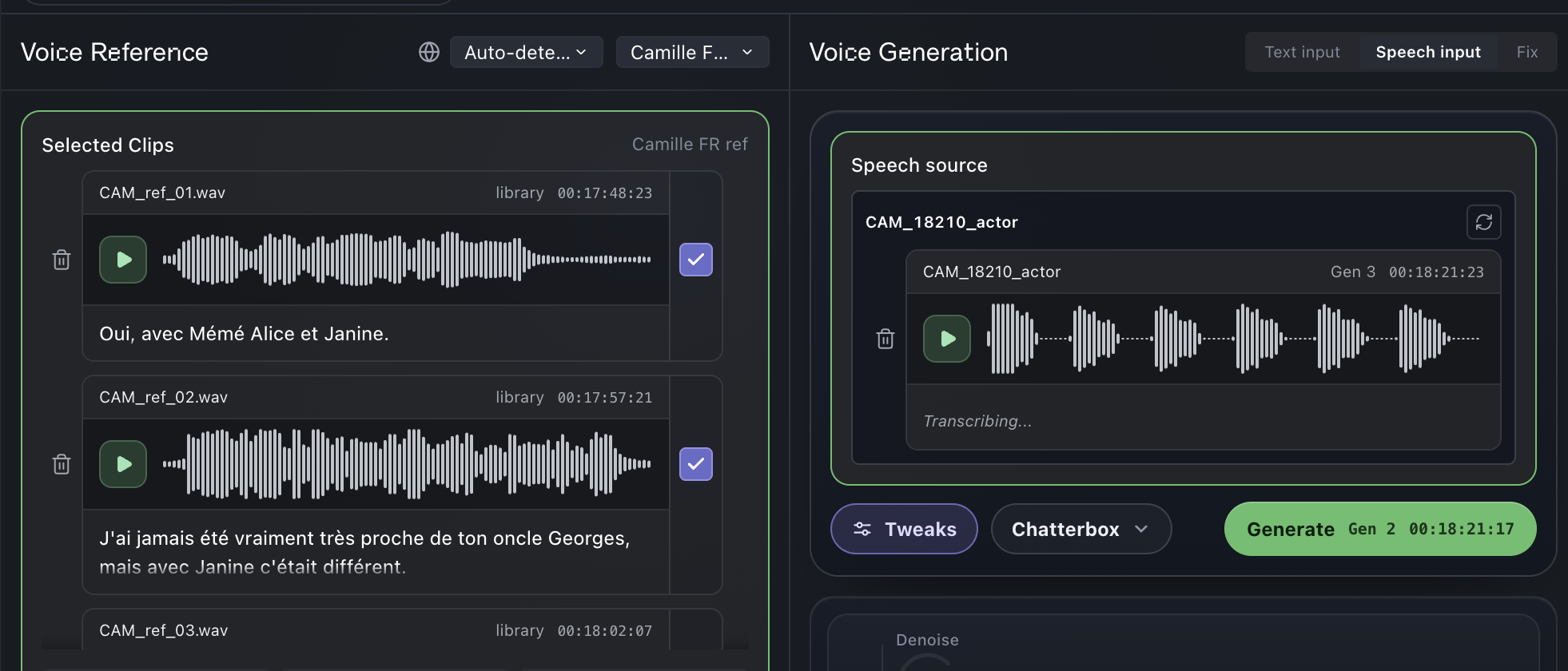
Her recording becomes the source. Generate, spot, and send it back for review. (1) Her recording as the source; (2) Her voice as the reference; (3) Generate.

Her recording becomes the source. Generate, spot, and send it back for review.

  • 1Her recording as the source
  • 2Her voice as the reference
  • 3Generate

Settings

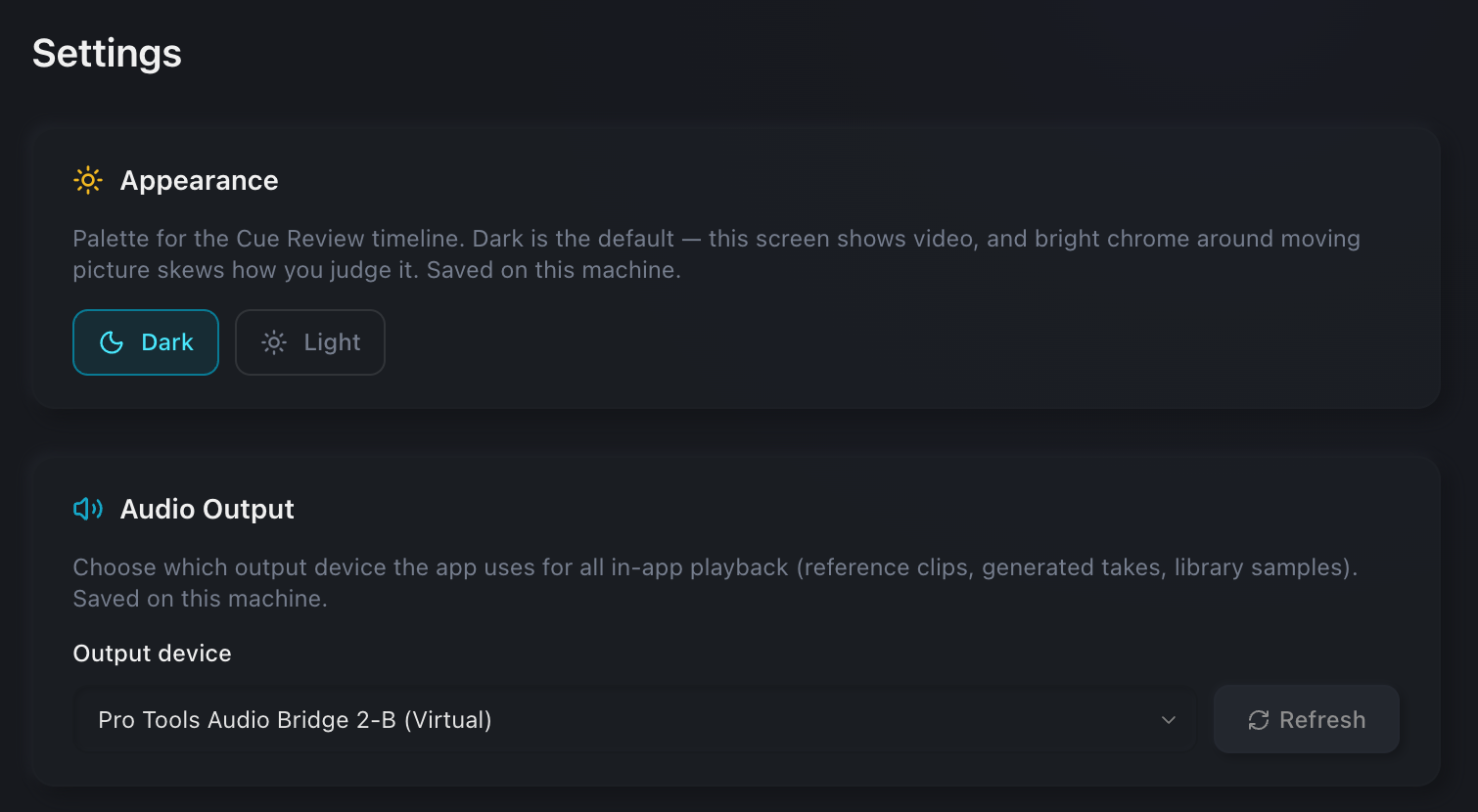
Set these once.

  • 1Output device
×
And per project. (2) Auto-Align: boom and lav line up; (3) Mic split: one clip per mic; (4) Default pre-roll and post-roll.

And per project.

  • 2Auto-Align: boom and lav line up
  • 3Mic split: one clip per mic
  • 4Default pre-roll and post-roll

Part C

What your director and actor see

For: For you to know: director and actor · review.aidr.studio, on a computer or a phone

The director

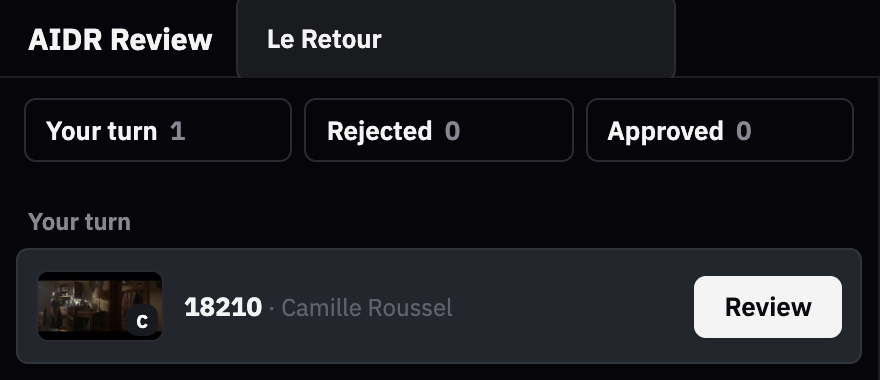
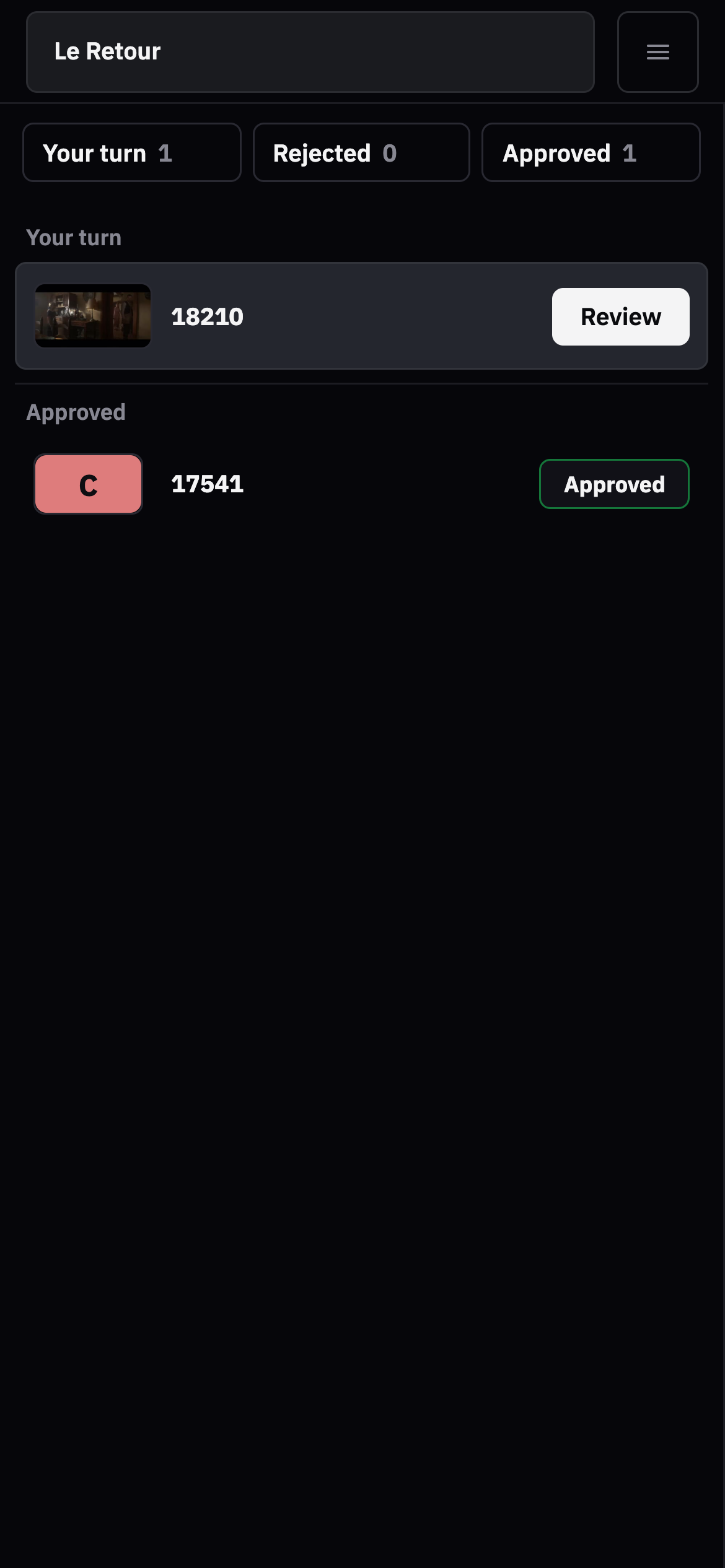
One inbox for director and actor. Each sees only their own cues. (1) Your turn; (2) Project; (3) Open the cue.

One inbox for director and actor. Each sees only their own cues.

  • 1Your turn
  • 2Project
  • 3Open the cue
×
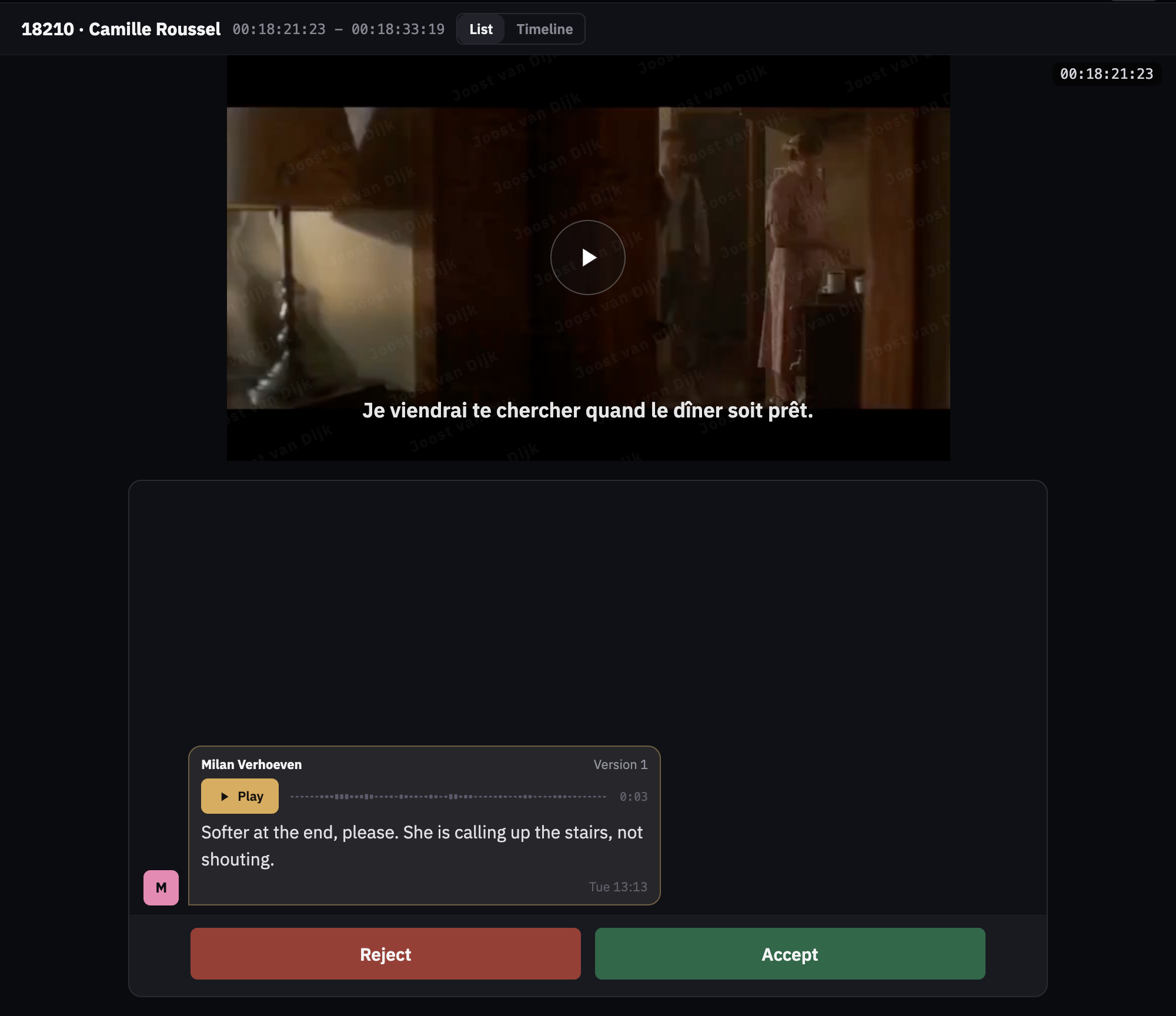
The take plays on picture, with the viewer's name across it. (1) Watermark: the viewer's own name; (2) Play; (3) The editor's message; (4) Reject or accept.

The take plays on picture, with the viewer's name across it.

  • 1Watermark: the viewer's own name
  • 2Play
  • 3The editor's message
  • 4Reject or accept
×
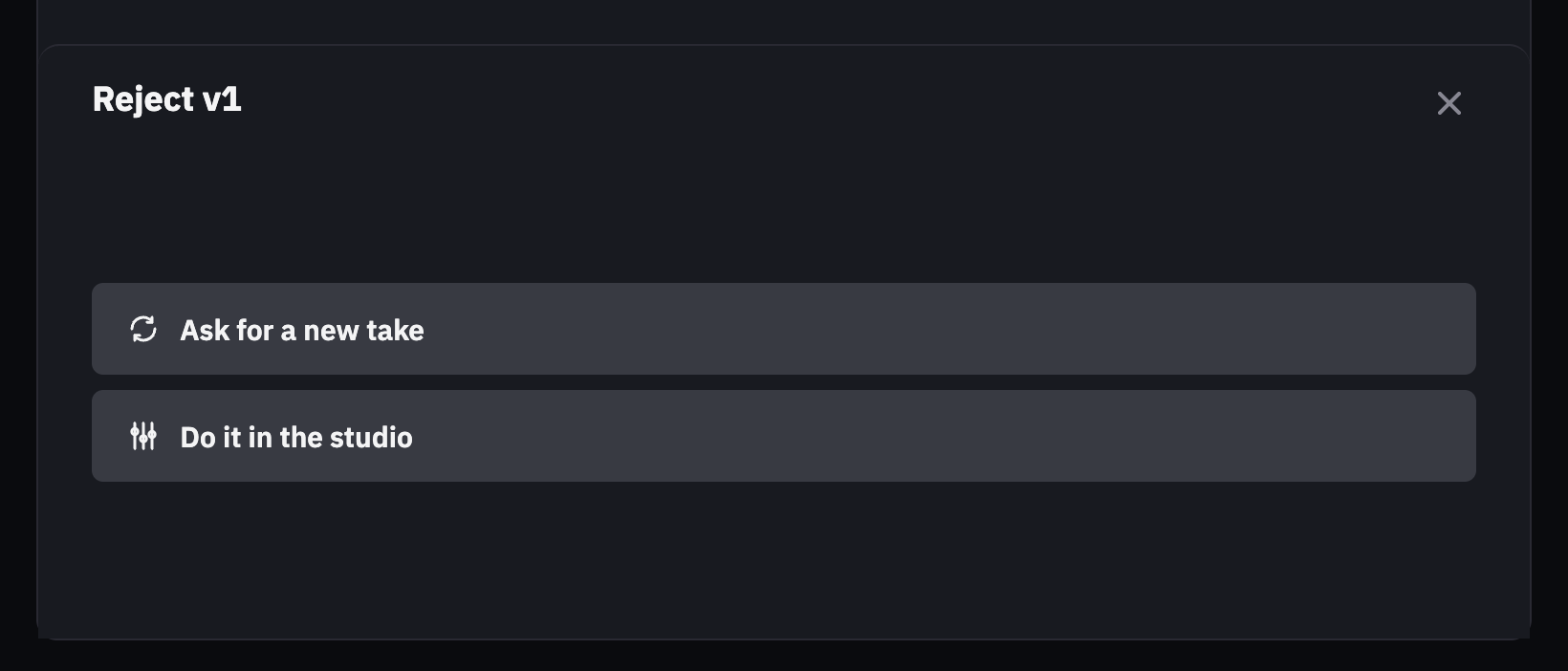
A rejection goes back one of two ways. (1) Ask for a new take; (2) Do it in the studio.

A rejection goes back one of two ways.

  • 1Ask for a new take
  • 2Do it in the studio

The actor, on a phone

The director goes first. Then the actor decides about her own voice. (1) Your turn; (2) Open the cue.

The director goes first. Then the actor decides about her own voice.

  • 1Your turn
  • 2Open the cue
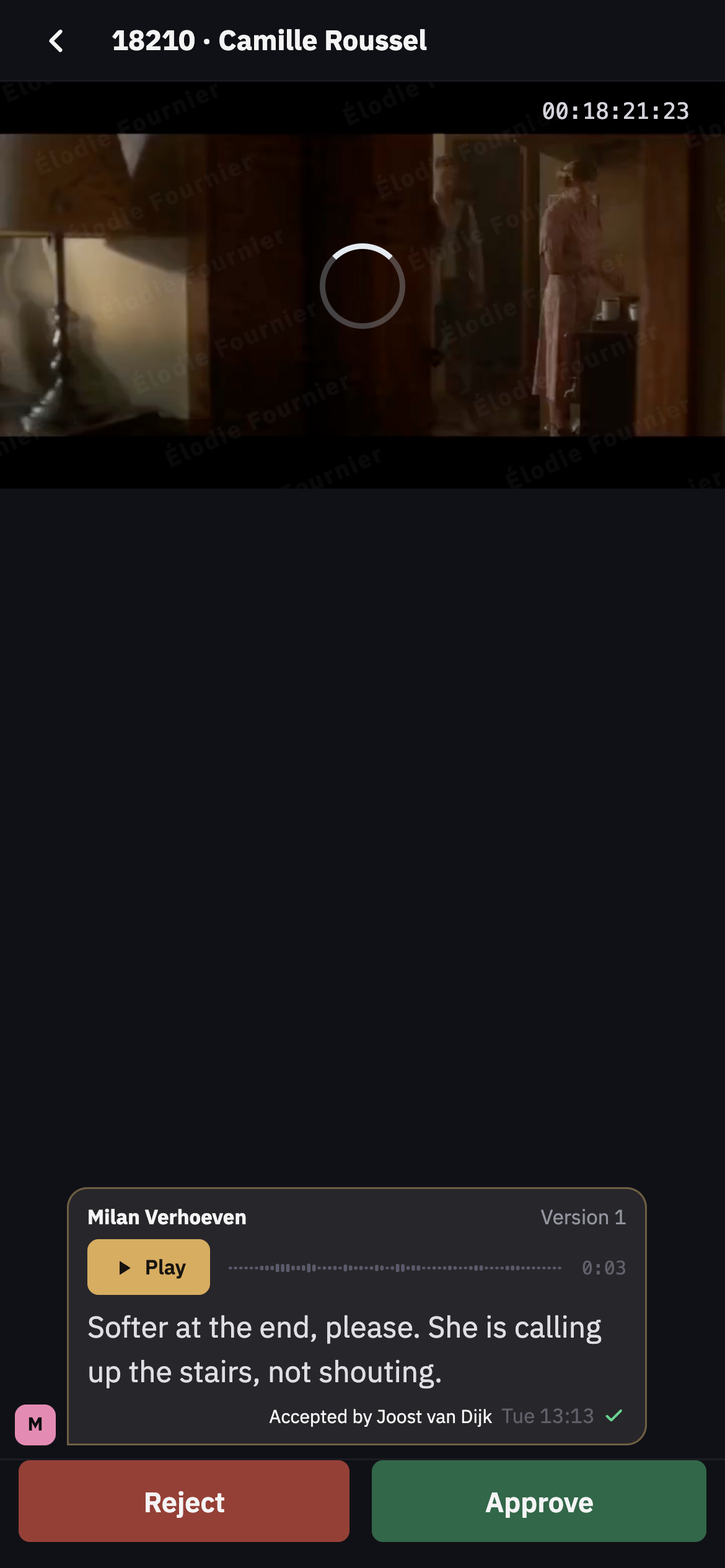
She sees what the director decided, and plays the take on picture. (1) Her own name across the picture; (2) The director accepted; (3) Approve; (4) Reject.

She sees what the director decided, and plays the take on picture.

  • 1Her own name across the picture
  • 2The director accepted
  • 3Approve
  • 4Reject
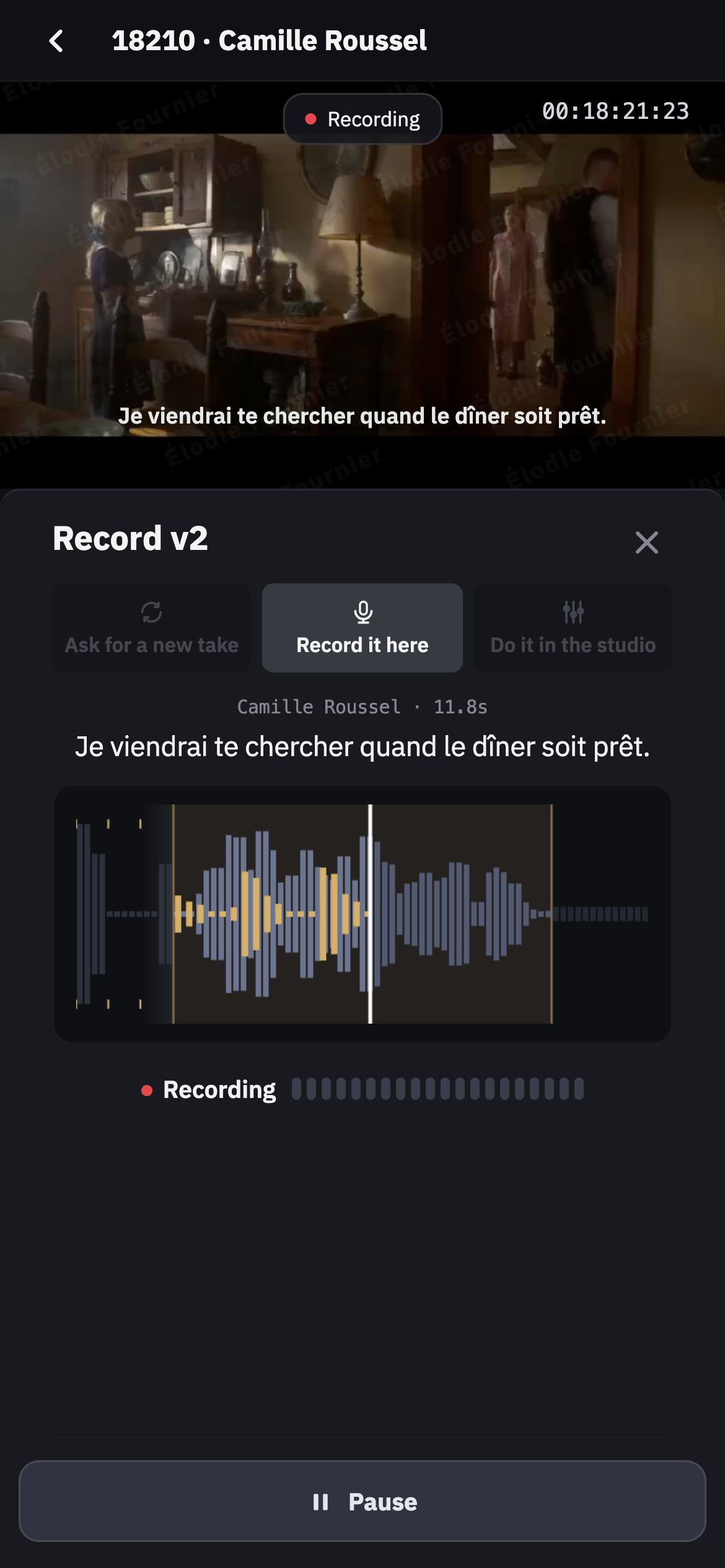
Or she records it herself, right there, while the picture runs. (1) Record it here.

Or she records it herself, right there, while the picture runs.

  • 1Record it here
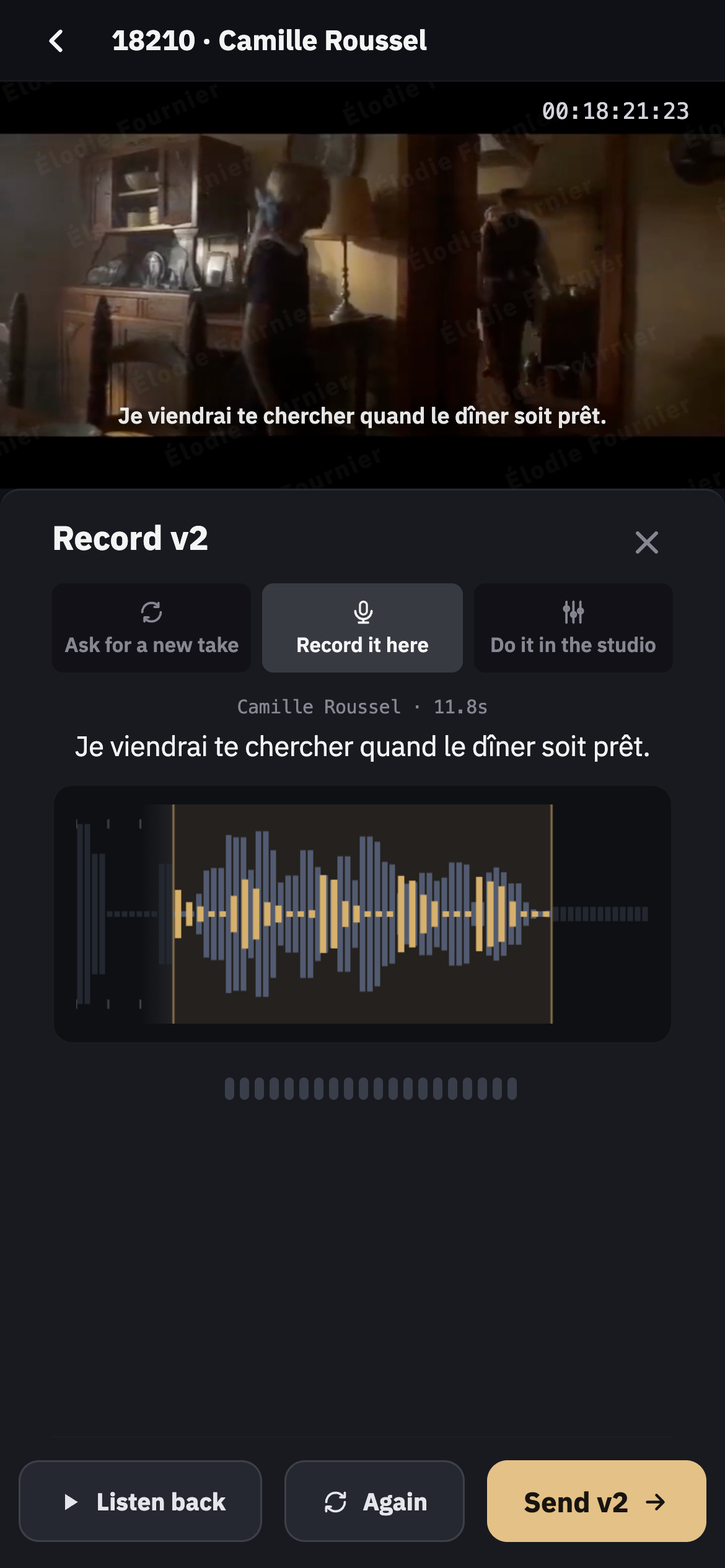
She listens back and sends it to the studio. (1) Record it here; (2) Send.

She listens back and sends it to the studio.

  • 1Record it here
  • 2Send
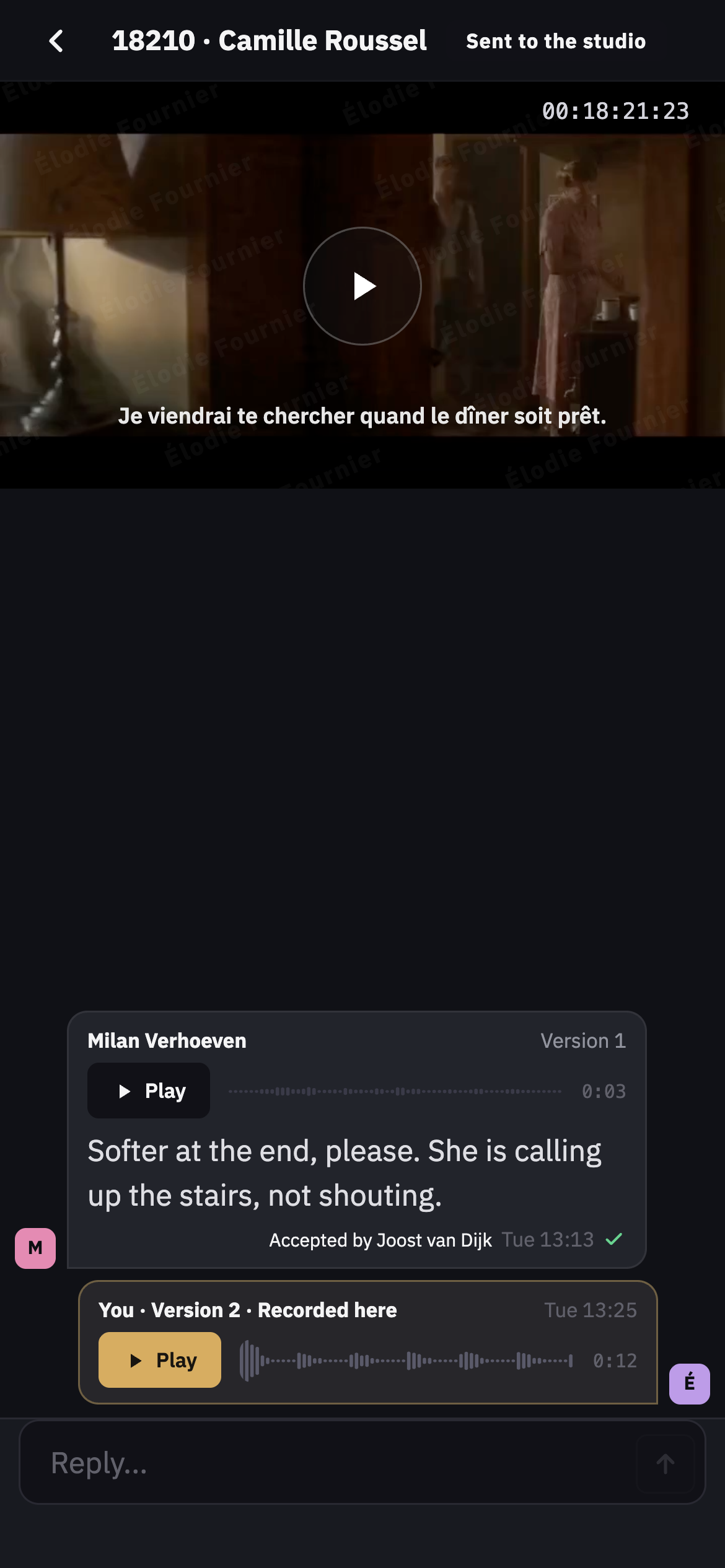
Done. The recording is with you in AIDR Studio. (1) Sent to the studio; (2) Her recording.

Done. The recording is with you in AIDR Studio.

  • 1Sent to the studio
  • 2Her recording

Roles

Workspace adminRuns the workspace. Invites project creators.
Project creatorCreates projects and runs them.
Project assistantHelps on one project, with what is ticked.
Dialogue EditorGenerates, spots and sends takes in AIDR Studio.
DirectorReviews a take first.
ActorDecides about their own voice.

Glossary

Cue
A line to replace. Its number comes from its timecode.
Take
One generated version of a cue.
Spot
Place a take on the Pro Tools timeline.
Reference
The original clips the new take should sound like.
Profile
A saved reference, reusable in any scene.
Text input
Type a line, hear it in the actor's voice.
Speech input
Speak or record a line, hear it in the actor's voice.
Fix a word
Replace one word inside an existing take.
Director present
The director approves in the room; the cue goes straight to the actor.
Temp
A character without a consenting actor.
Ghost
A character nobody plays.